All features / Animation & timeline
Export animation as MP4, GIF or a PNG sequence
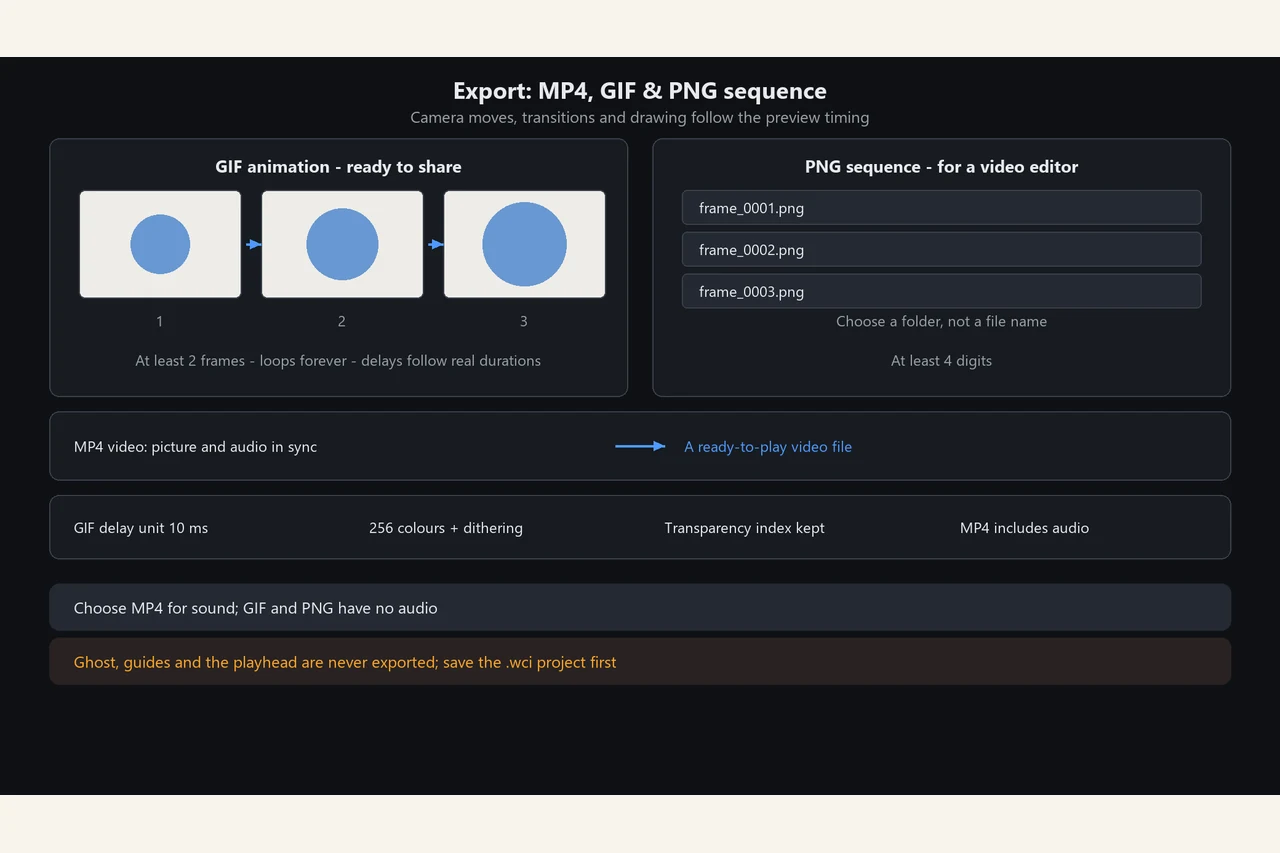
Choose GIF for a looping clip, PNG sequence for editing elsewhere, or MP4 when the soundtrack needs to travel with the picture. Camera moves, transitions and recorded strokes are expanded into real frames.
WORKFLOW
How it fits your workflow
GIF loops and keeps transparency
PNG sequence numbers every rendered frame
Save the .wci project before exporting
PRACTICAL GUIDE
Why are there more exported frames than timeline frames?
Camera moves, transitions, object animation and recorded strokes are all expanded into real pictures. Three frame slots on screen plus a recorded stroke can export as 73 PNGs. Preview the rhythm once before exporting.
I only see three frames — why dozens of PNGs?
Process shots, camera moves and transitions are expanded into actual frames. That is expected; reduce transitions or recorded strokes for fewer files.
Can I edit frames after export?
No. Exports are flattened results. Frame structure and audio live only in the .wci project, so save the project first.
STEP BY STEP
How to use it in the software
Export: MP4 video, GIF & PNG sequence
Three export formats
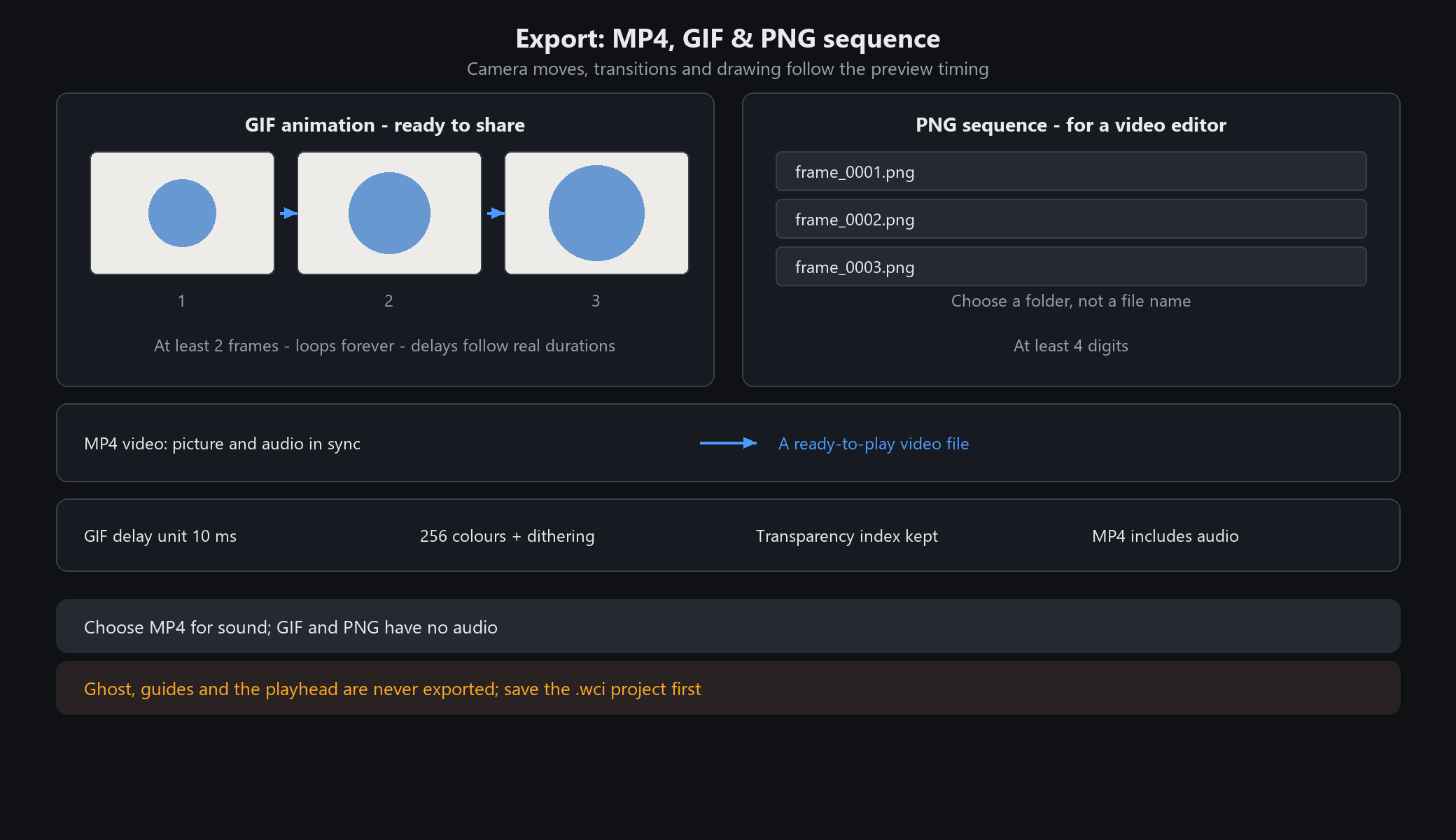
Click Export in the toolbar. There are three items: Export MP4 Video (with audio), Export GIF Animation (one animated .gif, ready to share) and Export PNG Sequence (a folder of numbered .png files for further work in a video editor). All three expand camera moves, transitions, object animations and recorded process shots into real pictures, with the same timing you saw on screen.
Progress and cancellation
MP4, GIF and PNG-sequence exports show completed and total picture counts. The progress window responds to Cancel Export while encoding; cancellation takes effect after the current processing step. The main window is temporarily unavailable for editing and returns when export ends or is cancelled.
GIF animation
Needs at least 2 frames. It loops forever by default (Netscape extension); players that ignore the extension still play it once correctly.
Each frame's delay comes from that shot's real duration, in 10 ms units with a 10 ms minimum, so per-frame holds, camera durations and transition durations all land as set.
Colours are reduced to a 256-colour indexed palette with error-diffusion dithering; transparent pixels keep a transparent index. A canvas whose full-frame pixels exceed the limit is rejected — downsize first.
PNG sequence
Choose a folder, not a file name. Output is `frame_0001.png`, `frame_0002.png`, ... with at least four digits.
Process shots are expanded here too: three frame slots on screen plus a recorded stroke can export as 73 PNGs. Use this when you want a real video, subtitles or a soundtrack.
Not available / when not to use it
MP4 video export includes the soundtrack aligned to the current timeline.
GIF and PNG have no audio; choose MP4 when sound is needed.
Ghost, guide lines and the playhead are screen aids and never appear in exports.
Many frames, a large canvas, transitions and recorded process shots multiply the exported frame count and file size; preview the rhythm once before exporting.
Save the .wci project first: exports are flattened results, while frames and audio live only in the project.
STEP BY STEP
Feature 16 · Video production
Need exact settings and steps? Read the matching chapter of the in-app manual online.