All features / Portrait & photo
Change a portrait or ID photo background
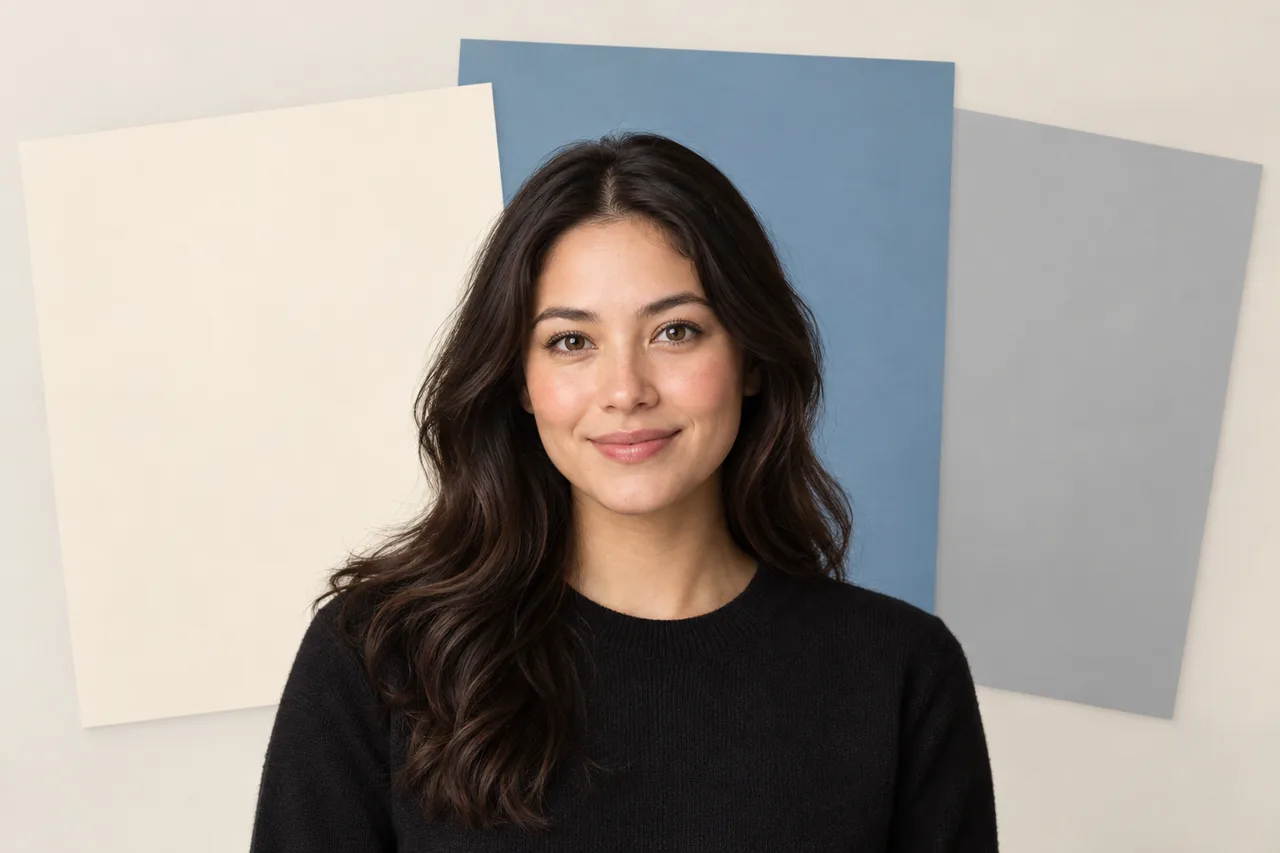
Need a clean portrait background for an ID photo or profile image? Separate the person, inspect the edges and choose a suitable solid color.
WORKFLOW
How it fits your workflow
Replace a distracting background
Check hair and shoulder edges before export
Choose a background color for the intended use
Practical details before you begin
A good background change begins with a clean subject edge. Look closely at loose hair, shoulders and clothing before deciding the mask is ready.
Choose a plain color appropriate for the document or profile destination. Check the required dimensions and file format before saving the final copy.
PRACTICAL GUIDE
Change an ID photo background and inspect the edges
Separate the person first. Zoom in on loose hair, ears and shoulders to check for leftover background. Then choose a solid color, dimensions and format required by the destination.
Can I make the ID photo background blue or white?
You can choose a solid color, but verify the exact background, dimensions and file-size rules of the agency or platform receiving the photo.
How do I avoid a white halo around the hair?
Inspect and refine the subject edge before export. A light original background against a dark new color makes halos especially visible.
STEP BY STEP
How to use it in the software
AI background swap: cut the person out, change the backdrop
Where
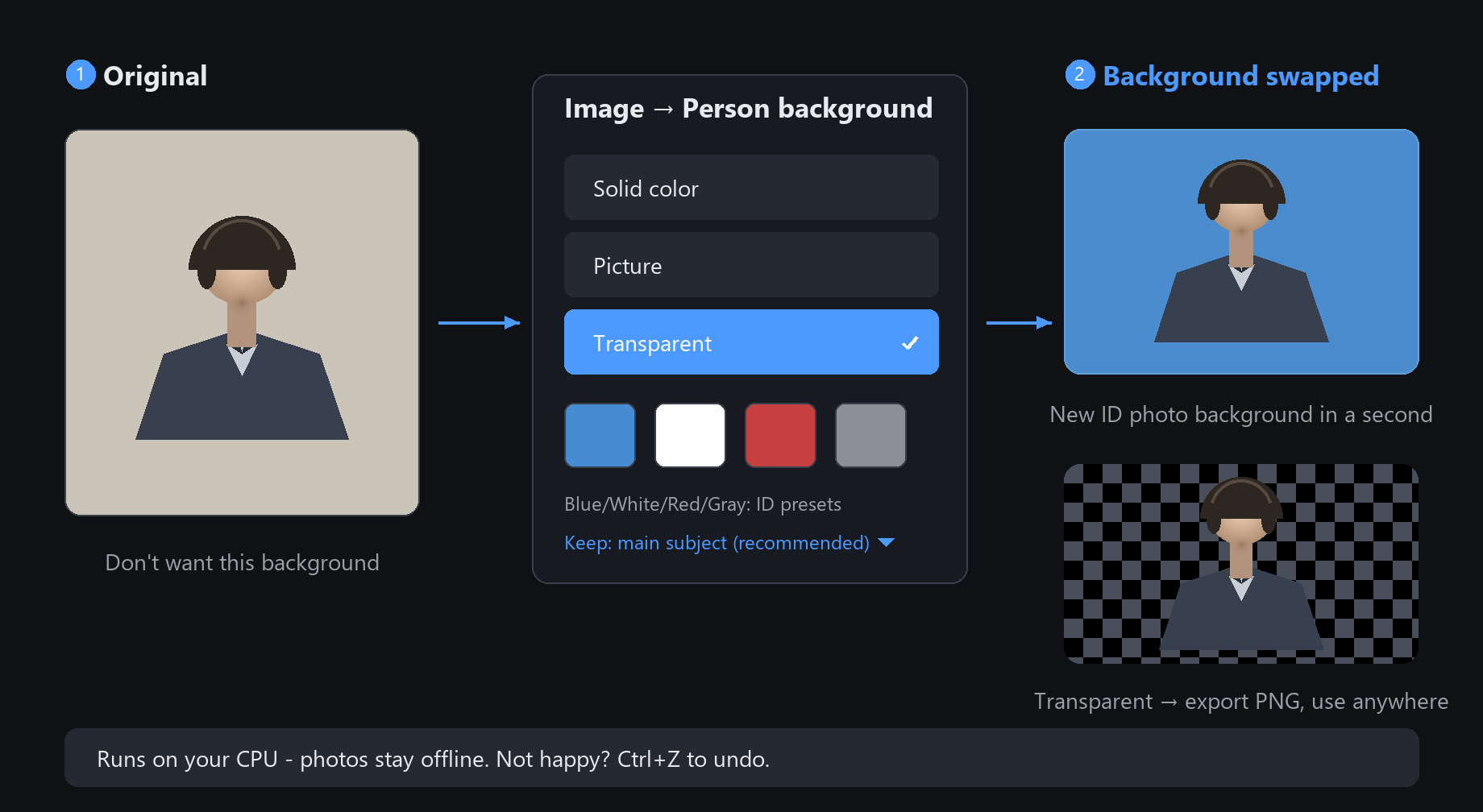
Menu Image → Replace portrait background. Segmentation and compositing run
entirely on your machine; the photo never leaves it.
Three kinds of new background
Solid colour: pick any colour; four ID-photo presets below — blue, white, red, grey
Image: choose one of your own photos as the new backdrop
Transparent: remove the background and export a PNG to layer onto anything
Keep range (dropdown)
Main subject (recommended): the most important person or object stays, the rest is replaced
All foreground: every detected foreground stays
Person inside current selection: only what you selected (needs a selection first)
The classic use is ID-photo backgrounds: blue to white in a second.
If a fringe of the old background stays on hair edges, two A/B brush strokes along the hair clean it up
Background textures: 55 canvas presets
Where
Among the small buttons at the top-right of the canvas, right next to the sketch
library, is "Background". Click it for a wall of thumbnails.
What is inside
5 basics: transparent, white, black, foreground, background colour — transparent for asset work
Calligraphy grids: brush grid, rice cross, field grid
Papers: xuan, kraft, watercolour, sketch, parchment, gold-flecked xuan and more
Fabric and hard surfaces: linen, denim, silk, leather, concrete, red brick, brushed metal
Patterns: polka dots, checkerboard, music staves, blueprint, picnic plaid
Natural textures: starry sky, clouds, sand, moss, watercolour clouds
How to use it
Click to switch instantly. Swap back and forth at any time; what you have painted is untouched.
Starting from "transparent" and previewing on "xuan paper" is a common order for ink-style work.
Textures are just the canvas backdrop, not a layer: switch back to "transparent" before exporting a PNG if you need real transparency.
keep a transparent-background project file for serious work
STEP BY STEP
Feature 7 · Background swap
Need exact settings and steps? Read the matching chapter of the in-app manual online.