All features / Drawing & coloring
Draw one side and get the other side automatically
Mirrored or rotated strokes appear as you draw, so butterflies, face patterns and badges need no measuring. The centre starts at the canvas centre and the guide line is screen-only.
WORKFLOW
How it fits your workflow
Seven modes including four-, six- and eight-fold rotation
Guide lines never appear in the export
Turning it off only affects new strokes
Practical details before you begin
Pick left-right mirror for a butterfly, four-way symmetry for corner ornaments, or four-, six- and eight-fold rotation for flowers and snowflakes. Set Symmetry Centre… to enter X and Y in canvas pixels, or use Return to canvas centre to reset.
Guides default to 34% opacity (10–100%) and are never exported. The project remembers the mode and centre, so reopening keeps them. Turning symmetry off does not erase strokes already drawn.
PRACTICAL GUIDE
Do I have to measure both sides of a butterfly or badge?
Click Symmetry Painting in the top bar (or Image → Symmetry Painting), choose left-right mirror and draw half a butterfly — the other half appears as you draw. For radial patterns switch to four-, six- or eight-fold rotation; there are seven modes in total.
Will the guide lines end up in the export?
No. Guides are screen-only, never drawn into the artwork or exported, and default to 34% opacity (10–100%). The project remembers the mode and centre, so reopening keeps them.
What about asymmetric details like expressions or signatures?
Turn symmetry off before drawing those, or one stroke appears several times. Turning it off only affects later strokes — existing ones stay. If the centre moves outside the canvas, use Return to canvas centre.
STEP BY STEP
How to use it in the software
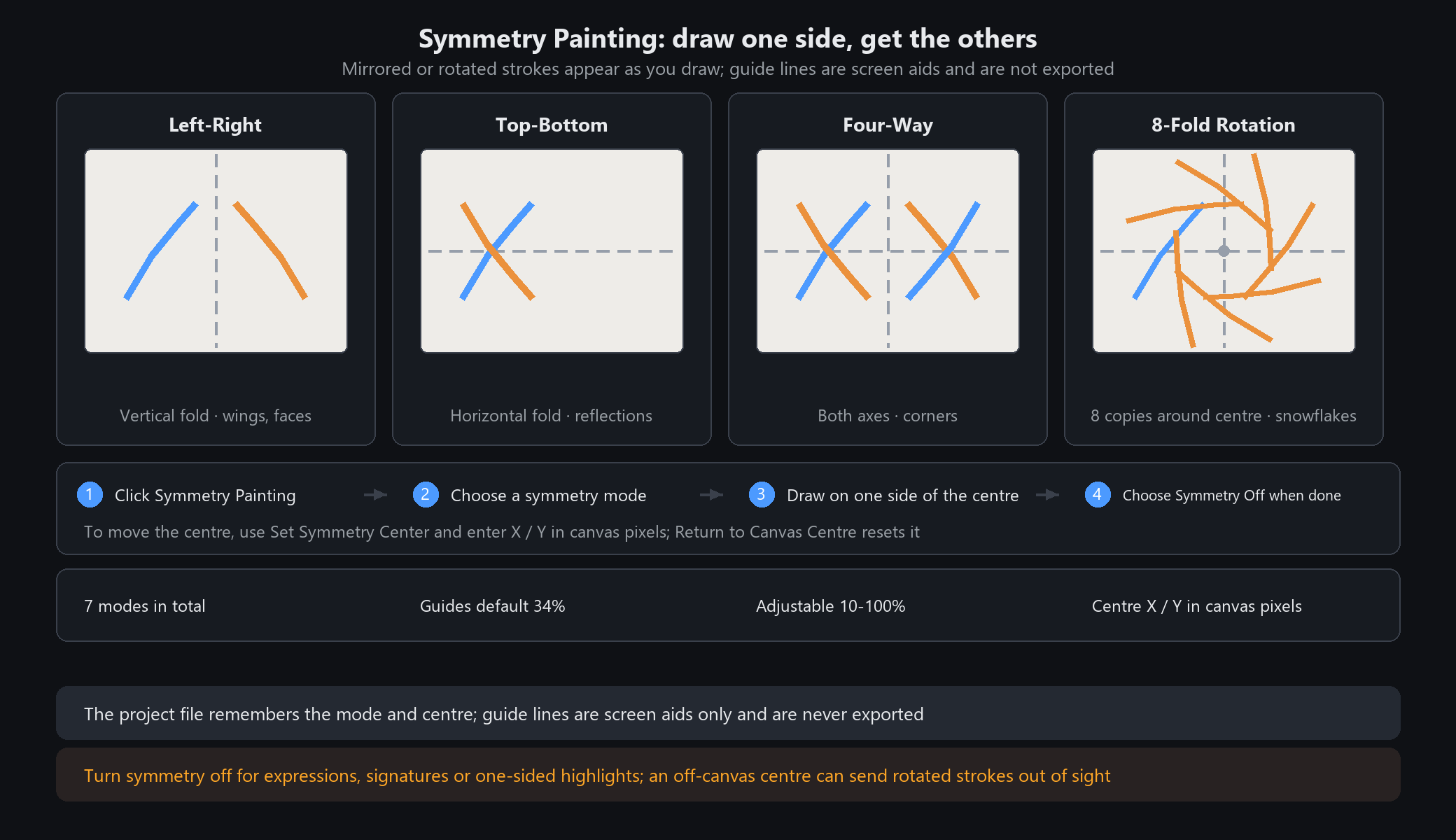
Symmetry Painting: draw one side, get the others
The idea
Matching mirrored or rotated strokes appear as you draw, so butterflies, face patterns and badges need no measuring. The centre starts at the canvas centre; guide lines are only screen aids and never appear in the exported image.
Five steps
1. Click Symmetry Painting in the top toolbar, or use Image → Symmetry Painting.
2. Choose Left-Right Mirror and draw half a butterfly left of the centre line; the other half appears at once.
3. Choose Four-Way Symmetry to mirror both axes; try Four-, Six- or Eight-Fold Rotation for radial patterns.
4. To move the centre, choose Set Symmetry Center and enter X (horizontal) and Y (vertical) in canvas pixels; Return to Canvas Centre resets it.
5. Toggle Show Guides and set guide opacity — default 34%, adjustable from 10% to 100%. Choose Symmetry Off when done; later strokes are drawn once.
Choosing a mode
Off: ordinary drawing.
Left-Right Mirror: folds across a vertical line; butterfly wings, both sides of a face.
Top-Bottom Mirror: folds across a horizontal line; reflections in water.
Four-Way Symmetry: mirrors across both lines; four-corner decoration.
Four-, Six-, Eight-Fold Rotation: repeats 4 / 6 / 8 copies around the centre; flowers, snowflakes, badges.
When not to use it / Questions
Asymmetric details (expressions, signatures, one-sided highlights): turn symmetry off first, or one stroke produces several copies.
Does turning it off delete earlier copies? No. It affects only later strokes.
Centre moved outside the canvas? Rotated strokes may land off-screen; use Return to Canvas Centre.
The project file remembers the mode and centre. Guide lines are not exported.
STEP BY STEP
Feature 14 · Symmetry Painting
Need exact settings and steps? Read the matching chapter of the in-app manual online.