All features / Drawing & coloring
Fade the reference layer so you can trace over it
Onion Skin changes only what you see on screen: the selected layer stays at 100% and the others fade to a percentage you set. Saves and exports always use the original layer content.
WORKFLOW
How it fits your workflow
Default 32%, adjustable from 5 to 100%
One anchor layer always stays fully visible
Only a display aid — exports never get fainter
Practical details before you begin
Select the layer to trace in the Layers panel and click Onion Skin — it becomes the anchor and stays the anchor when you switch layers to draw. A slider appears: drag it or use − / + in 10% steps, from 5 to 100%, default 32%. Lower values make the other layers fainter.
Software Settings → General → Layer Onion Skin Opacity changes the default for every session (32%); the panel slider is temporary. The anchor cannot be a folder layer, and hiding or deleting it changes the view. Turn it off and check the result when you finish.
PRACTICAL GUIDE
How do I fade a sketch for tracing without changing the pixels?
Select the layer to trace in the Layers panel and click Onion Skin. That layer becomes the anchor and stays at 100%, while the others fade with a slider: − / + in 10% steps, from 5 to 100%, default 32%. Only the screen view changes.
Will the saved or exported image be faded?
No. Onion Skin is an editing preview only; saves and exports use the original layer content. It also cannot fade every layer at once — one layer always stays fully visible. To darken everything, change layer opacity.
Is this what I use to line up animation frames?
No, that is a different feature. An overlay on the timeline tints the previous frame red and the next one blue for alignment, and also stays out of exports. Layer Onion Skin fades layers; the two are easy to confuse.
STEP BY STEP
How to use it in the software
Onion Skin: fade other layers so you can trace
The idea
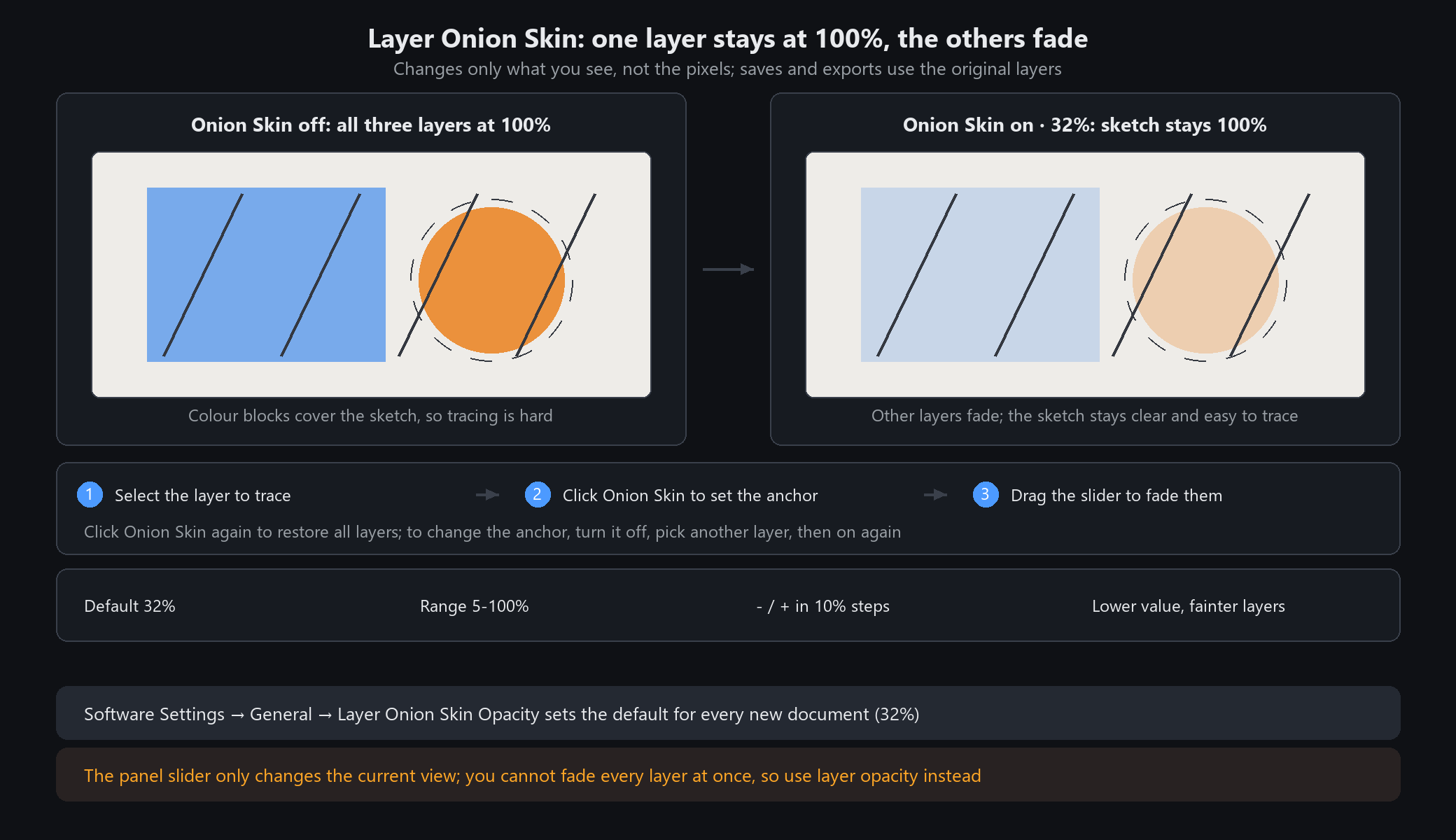
Onion Skin changes only what you see on screen, not the pixels: the selected layer stays at 100% and the others fade to a percentage you set, so you can trace a sketch. Saves and exports always use the original layer content.
Three steps
1. Select the layer to trace (sketch, line art or background) in the Layers panel and click Onion Skin in the layer toolbar. That layer becomes the anchor; switching to another layer to draw does not change it.
2. Create or select the layer to draw on. While Onion Skin is on, the Layers panel shows a slider: drag it, or use − / + in 10% steps. The range is 5–100%, default 32%. Lower values make the other layers fainter.
3. Click Onion Skin again to restore every layer. To change the anchor, turn it off, select another layer and turn it on again.
Default vs. current
Software Settings → General → Layer Onion Skin Opacity sets the default for every session (32%). The slider in the Layers panel adjusts only the current view and leaves no trace.
When not to use it / Questions
Will exports look faded? No. This is an editing preview only.
Can I fade every layer at once? No. One layer always stays normal; use layer opacity to dim the whole image.
Why is the button unavailable? Open a document and pick a regular layer or the background, not a folder.
Hiding or deleting the anchor changes the view; turn Onion Skin off and check the result when you finish.
STEP BY STEP
Feature 11 · Layer Onion Skin
Need exact settings and steps? Read the matching chapter of the in-app manual online.