All features / Batch image processing
Batch compress images to a target file size
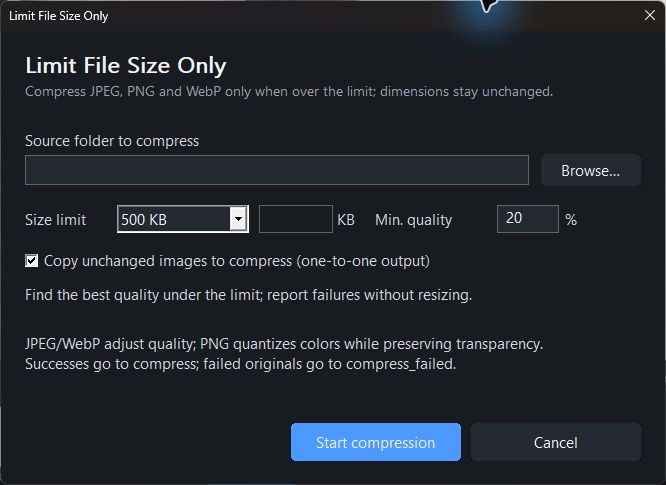
Preparing uploads with a size limit? Compress a group of images and review the result when a target cannot be reached without excessive quality loss.
WORKFLOW
How it fits your workflow
Set a target size for many images
Balance dimensions and visual quality
See which files need another pass
Practical details before you begin
File-size limits for forms, stores and websites are often strict. A target in kilobytes is useful, but a detailed photo may need smaller dimensions before compression can reach it cleanly.
Review the output rather than assuming every file can hit the same limit at equal quality. The result list helps identify exceptions that need a second pass.
PRACTICAL GUIDE
Start with the upload limit, then compress the folder
A store listing, application form and website may each limit file size, pixel dimensions or both. Check the actual requirement before applying one setting to a whole folder.
Can I compress many images to a specific KB size without making them blurry?
A lower target can remove visible detail. Test a few different photos and inspect text, hair and fine textures. If the result is soft, reduce pixel dimensions before pushing quality lower.
Why do some images remain above the target size?
Photos vary in detail, so equal quality and dimensions do not guarantee equal file sizes. Review the result list and rerun exceptions with adjusted dimensions or quality.
Will the batch overwrite my original photos?
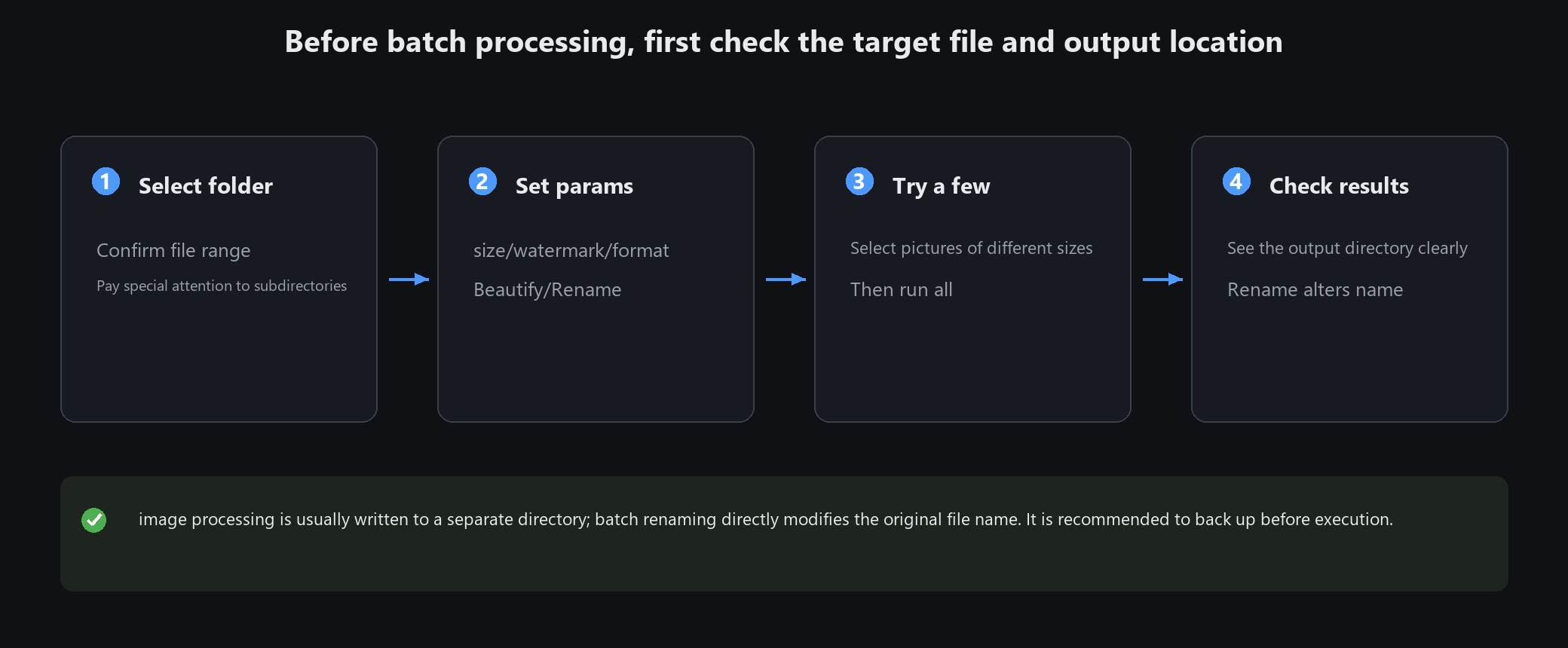
Choose a separate output folder and verify its name before running the job. Keep the originals for later exports.
STEP BY STEP
Batch processing
Need exact settings and steps? Read the matching chapter of the in-app manual online.