All features / Batch image processing
Batch prepare product images for online stores
Give mixed product photos one consistent canvas, centered padding, output format and file size. Prepare a folder for store listings without editing each image by hand.
WORKFLOW
How it fits your workflow
Set one canvas size for the whole folder
Center products with a solid or transparent background
Choose output format and file size together
Practical details before you begin
Online stores often ask for square images, clean margins and a size limit. The product-image batch tool brings these settings into one job, so wide and tall photos can share a consistent presentation.
Choose the canvas dimensions and background, then set the export format and file-size target. Test a few different product shapes, review the result and keep the original folder intact.
PRACTICAL GUIDE
One batch for canvas size, format and file-size limits
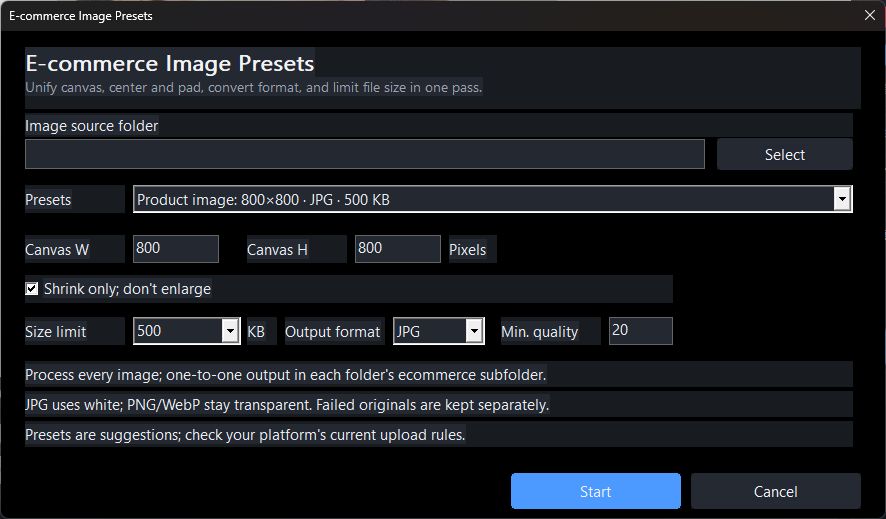
Open E-commerce Image Presets, choose a preset or enter canvas width and height, then select the source folder. You can keep smaller images from being enlarged, choose JPG, PNG or WebP, and set a KB limit with a minimum quality. The dialog shows the output folder before processing.
How do landscape and portrait products fit one listing size?
Use a common canvas with padding so the full product remains visible. Test a few aspect ratios and check the apparent product size and margins.
What if a product photo cannot meet the KB limit?
The minimum-quality setting protects against excessive degradation. A detailed image may still exceed a strict limit; inspect the failed result and revise the canvas or target.
STEP BY STEP
How to use it in the software
What batch processing does
The Batch menu groups commands by purpose:
Format conversion: turn a set of images into another format
Resize: maximum dimensions, fixed width or height, exact dimensions, or a padded canvas
File-size limits: compress alone, or limit both dimensions and file size
E-commerce fit: standardise dimensions and padding for product photos
Watermark / auto beautify: apply one mark or look to a set of photos
Batch rename: changes the selected files' names. Check the folder and naming rule first
Most image operations write to a separate output folder; rename changes the original filenames. Review the confirmation screen before running
Three things before running a batch
1. Test on two or three first: one landscape, one portrait, one square. Run the full batch only when happy
2. Check the output folder: image operations usually create one; read any same-name-folder warning before continuing
3. Back up before renaming: rename changes the original filenames. Check the preview and numbering rule
Cancelling
You can cancel mid-run. Files already processed are kept; the rest are skipped.
Hundreds of images take a while, and a progress bar is shown. Do not start another heavy job at the same time
STEP BY STEP
Batch processing
Need exact settings and steps? Read the matching chapter of the in-app manual online.