Batch processing
4 topics from the in-app manual.
What batch processing does
The Batch menu groups commands by purpose:
Format conversion: turn a set of images into another format
Resize: maximum dimensions, fixed width or height, exact dimensions, or a padded canvas
File-size limits: compress alone, or limit both dimensions and file size
E-commerce fit: standardise dimensions and padding for product photos
Watermark / auto beautify: apply one mark or look to a set of photos
Batch rename: changes the selected files' names. Check the folder and naming rule first
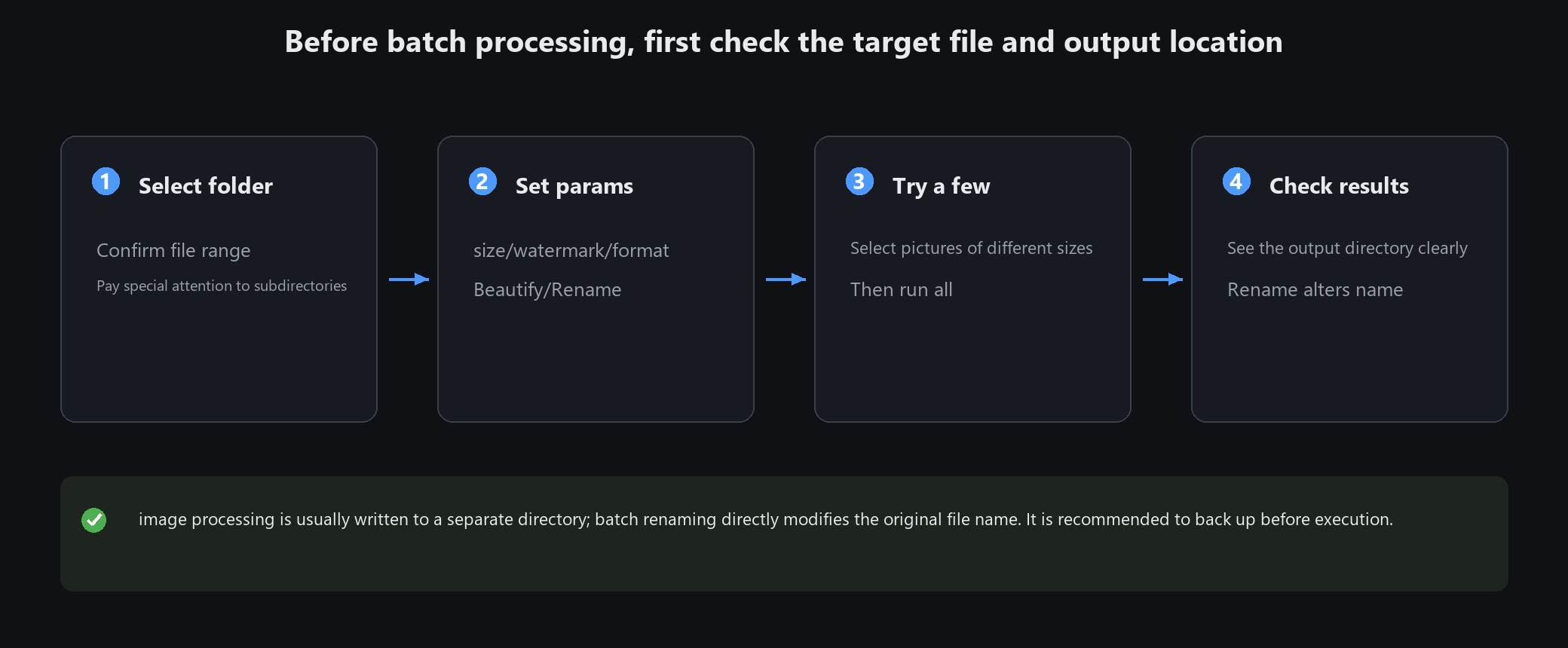
Most image operations write to a separate output folder; rename changes the original filenames. Review the confirmation screen before running
Three things before running a batch
1. Test on two or three first: one landscape, one portrait, one square. Run the full batch only when happy
2. Check the output folder: image operations usually create one; read any same-name-folder warning before continuing
3. Back up before renaming: rename changes the original filenames. Check the preview and numbering rule
Cancelling
You can cancel mid-run. Files already processed are kept; the rest are skipped.
Hundreds of images take a while, and a progress bar is shown. Do not start another heavy job at the same time
Batch watermark settings
Position: pick one of nine anchors. Bottom-right is the usual choice
Size: a percentage of image width. 5~10% works well
Opacity: 30~50%. Higher obscures the picture; lower does not deter copying
Text or an image logo both work
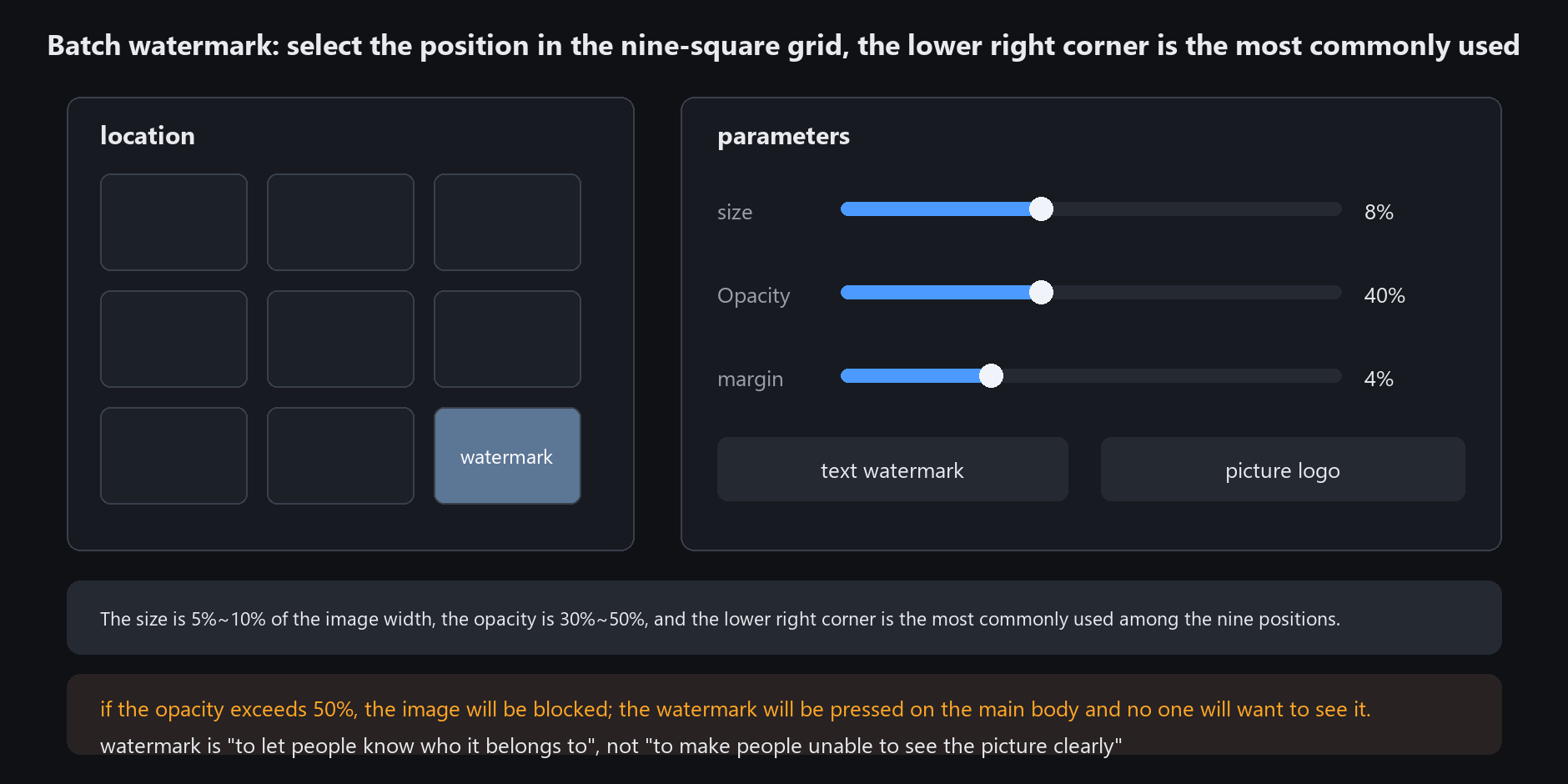
A watermark exists to say whose image this is, not to hide the image.
Watermarks covering the subject get ignored and spread nothing
Compressing to a target file size
Batch convert accepts a target size, e.g. 1.8 MB
Set 1.8 rather than 2.0 — leave headroom so you do not land exactly on the limit
The app balances quality against dimensions automatically
If the size will not come down, reduce dimensions first. A 5000 px wide image squeezed to 200 KB will always fall apart.
Shrink to 2000 px wide and compress instead — much better