All features / Batch image processing
Batch convert image formats
Need the same images in another format for a website or client? Convert a folder while checking transparency and background behavior for the chosen output.
WORKFLOW
How it fits your workflow
Convert multiple files in one run
Choose an output format for the destination
Check transparency when exporting JPEG
Practical details before you begin
Choose the destination format for its real requirement: JPEG for broad compatibility, PNG when transparency matters, or WebP for a supported web workflow.
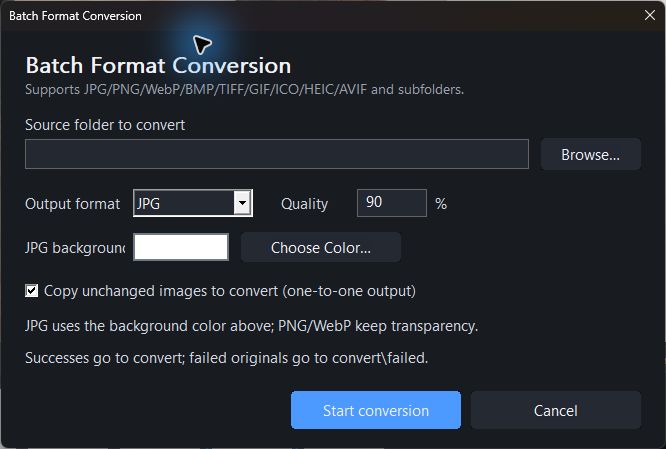
Transparency does not survive every conversion. If you send a transparent image to JPEG, select and inspect the background color before delivering the files.
PRACTICAL GUIDE
Convert a folder and choose how transparency is handled
In Batch Format Conversion, choose the source folder, output format and quality. Set a JPG background color when converting transparent images; PNG and WebP keep transparency. The dialog separates successful conversions from failed originals.
What happens when I convert a transparent PNG to JPG?
JPG has no transparency. Choose the background color in the dialog and inspect a sample before converting the whole folder.
STEP BY STEP
Files and formats
Need exact settings and steps? Read the matching chapter of the in-app manual online.