All features / Drawing & coloring
Textured paint buckets: crayon, watercolor and ink fills in one click
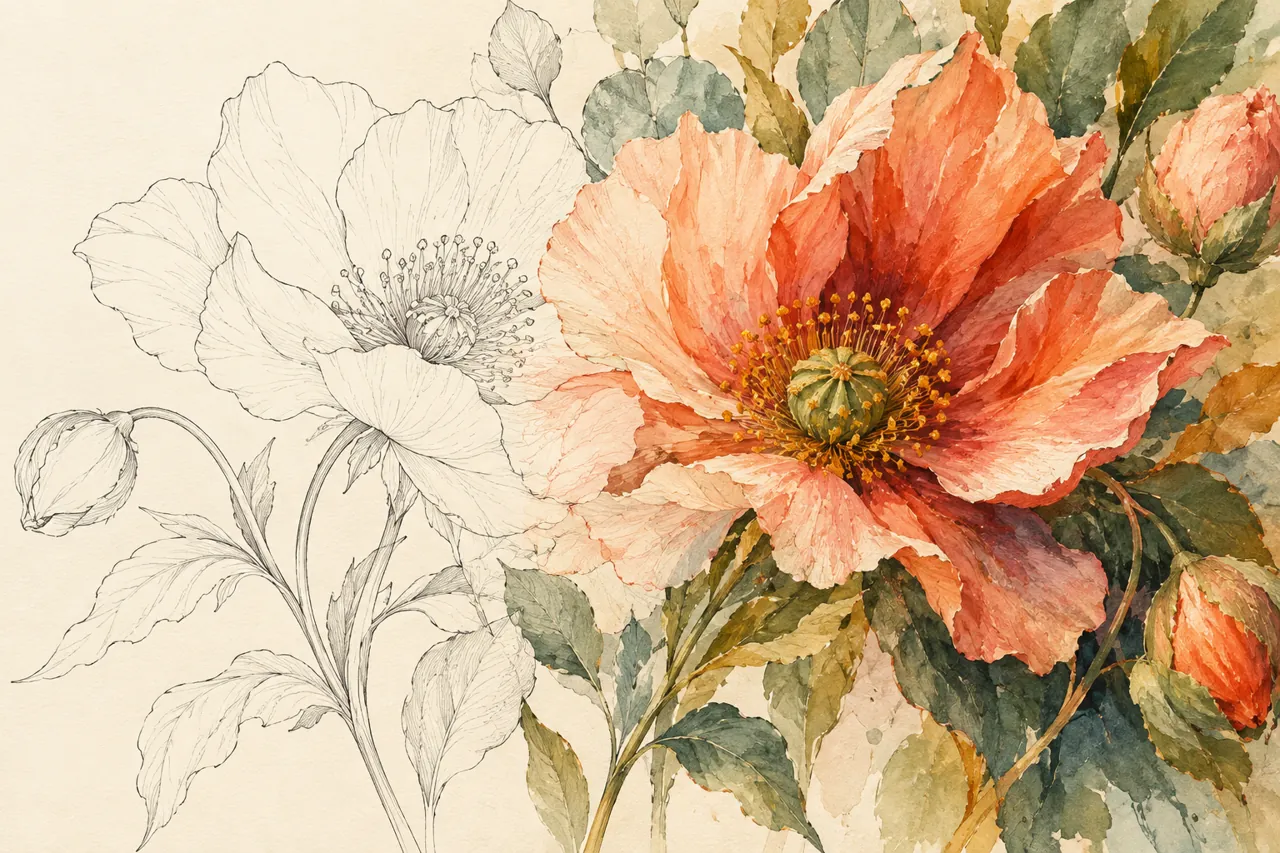
Most fill tools give you a flat colour. WenCang Image groups nine buckets by material — crayon, coloured pencil, watercolour, ink, oil paint and two gradient versions — and lays down the matching strokes and surface texture with a single click, no stacked texture layers.
WORKFLOW
How it fits your workflow
Pick a bucket by the material you want
Tune crayon strokes with four sliders
Set oil paint thickness from 0 to 100
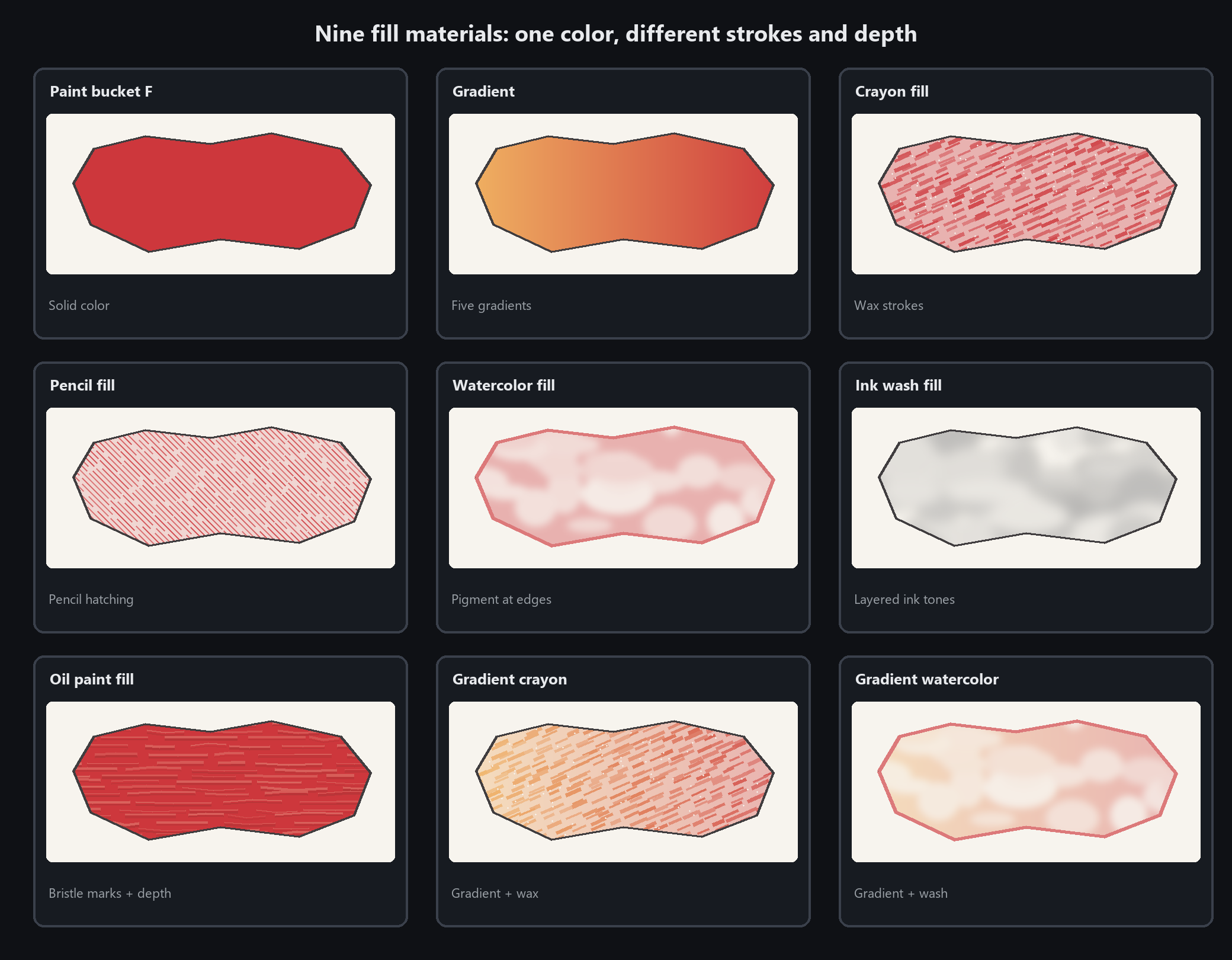
Nine buckets for different materials
Paint bucket
solid colour
Gradient
five types (linear / radial / angular / symmetric / diamond)
Crayon bucket
fills with crayon strokes
Pencil bucket
fills with coloured-pencil hatching
Watercolour bucket
with pigment settling at the edges
Ink bucket
ink tones
Oil paint fill
continuous pigment with separate height for bristle texture and raised edges
Gradient crayon bucket
gradient plus crayon texture
Gradient watercolour bucket
gradient plus watercolour feel
Practical details before you begin
In most painting apps a fill tool only floods an area with flat colour. Crayon grain or the dark rim of dried watercolour means extra texture layers, blend modes and edge effects. Here the material lives inside the bucket: press and hold the small triangle on the bucket button in the toolbox and nine options are grouped by material, each laying down its own marks in one click.
The crayon bucket exposes coverage, grain, stroke length, stroke width and a dial that sets the direction of every stroke. The watercolour bucket settles pigment at the edge, and the oil paint fill takes a 0–100 thickness with bristle grooves and raised rims. Choosing is simple: match the bucket to the brush used elsewhere in the picture — mixing them visibly clashes.
PRACTICAL GUIDE
Do I need stacked layers to get crayon or watercolor texture?
No texture layers needed. Press and hold the small triangle on the bucket button in the toolbox: nine buckets are grouped by material. One click with the crayon bucket lays down directional wax strokes; the watercolour bucket leaves pigment settled along the edge. Coverage, grain, stroke length and width live in the right panel, and the dial below sets the direction.
How to fill with crayon texture in one click?
Pick the crayon bucket and click the area. Coverage 70, grain 40, medium stroke length and one shared 45-degree direction give the familiar childrens colouring look — no paper-texture layer first.
Types of fill buckets: crayon vs watercolor bucket?
Nine in total: solid, gradient, crayon, pencil, watercolour, ink, oil paint, gradient crayon and gradient watercolour. Match the bucket to the brush used elsewhere in the picture: crayon art with the crayon bucket, watercolour with the watercolour bucket. Mixing them visibly clashes.
Crayon fill leaves edges uncovered — is that normal?
Yes. A crayon never reaches the very edge, so a little gap is correct. A clean white rim, on the other hand, is a tolerance problem with the plain bucket: adjust tolerance or the white-rim fix under Edit → Software settings → Paint bucket.
Oil paint thickness setting 0-100 — how to adjust?
Select the oil paint fill and set thickness from 0 to 100 in the panel. Higher values raise the paint while local relief stays varied. New fills get a slightly different texture; changing thickness on a selected fill keeps its pattern, and .wci projects retain the height data.
STEP BY STEP
How to use it in the software
Nine buckets for different materials
The bucket button in the toolbox has a small triangle. Press and hold it to open nine options:
1. Paint bucket (shortcut F): solid colour
2. Gradient: five types (linear / radial / angular / symmetric / diamond)
3. Crayon bucket: fills with crayon strokes
4. Pencil bucket: fills with coloured-pencil hatching
5. Watercolour bucket: with pigment settling at the edges
6. Ink bucket: ink tones
7. Oil paint fill: continuous pigment with separate height for bristle texture and raised edges
8. Gradient crayon bucket: gradient plus crayon texture
9. Gradient watercolour bucket: gradient plus watercolour feel
Set Paint Thickness from 0 to 100: higher values raise the paint while local relief stays varied. New fills get different texture; adjusting a selected fill keeps its pattern. WCI projects retain the height data
Crayon bucket: four sliders decide if it looks right
The crayon bucket does not fill a flat colour — it lays a layer of directional crayon strokes. Four sliders:
Coverage: how much the wax hides what is beneath. 100 is solid; around 60 lets paper grain show
Grain: the tooth of paper and wax. Raise it for a coarser look
Stroke length: how long one wax mark is. Short reads crumbly, long looks swept
Stroke width: how wide one mark is
Do not miss the dial
Below the sliders is a dial. Drag it to set the direction the crayon is dragged. Every stroke points the same way —
that is how people actually colour with a crayon. Mixed directions read as fabric texture, not crayon.
For a child's colouring look: coverage 70, grain 40, medium stroke length, a single 45-degree direction.
Edges that are not fully covered are correct — a crayon never reaches the very edge
Picking between pencil, watercolour and ink buckets
Pencil bucket
Fills with hatching — you can see individual strokes. It has a hatch-density slider.
For: sketchy illustration, journals, product sketches.
Watercolour bucket
Pigment settles into a darker rim at the edge (the way real watercolour dries), with an uneven wash inside.
For: hand-painted illustration, picture books, postcard style.
Ink bucket
Varying ink density with a bleeding edge.
For: Chinese style, freehand ink, ink posters.
Gradient versions (gradient crayon / gradient watercolour)
Gradient plus the matching texture. Use these when you want a gradient with a hand-made feel.
A quick rule: look at what brushes the rest of the picture uses. Match the bucket to the brush.
Crayon drawing with crayon bucket, watercolour with watercolour bucket — mixing them clearly clashes
STEP BY STEP
Feature 4 · Nine buckets
Need exact settings and steps? Read the matching chapter of the in-app manual online.