All features / Batch image processing
Add watermarks to images in bulk
Put the same mark on a collection of product or portfolio images. Set its position and opacity once, then apply it consistently to the batch.
WORKFLOW
How it fits your workflow
Apply one watermark across a folder
Control position and transparency
Keep unmarked originals separate
Practical details before you begin
Use a mark that stays readable without covering the important part of each photo. Test a wide image and a portrait image before applying one position to a mixed folder.
Set opacity with the destination in mind: a portfolio preview may call for a different mark than a product listing. Keep the unmarked originals for future exports.
PRACTICAL GUIDE
Place one watermark consistently across a folder
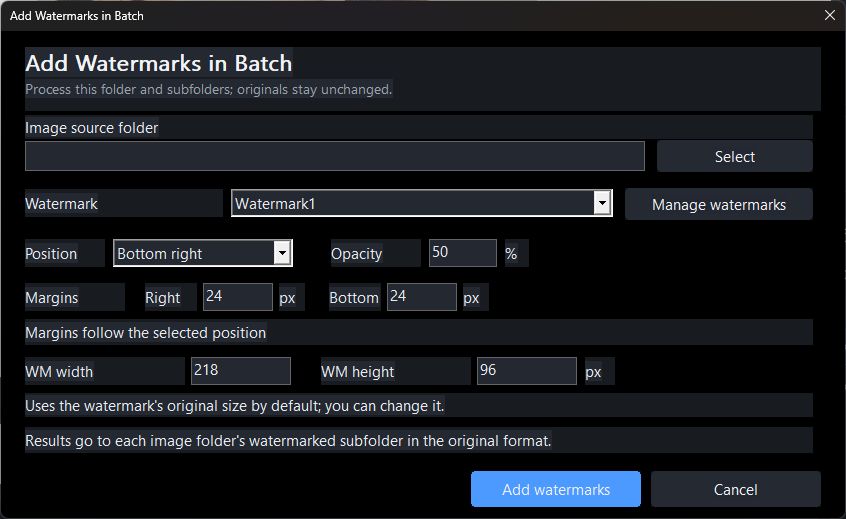
In Add Watermarks in Batch, select the source folder and a saved watermark. Set its anchor, opacity, margins and width or height. The dialog shows that results go to a watermarked subfolder beside each image while originals stay unchanged.
Will one watermark size suit both small and large photos?
Test a landscape, portrait and small image first. Inspect the mark’s apparent size, then adjust its dimensions and margins before the full run.
STEP BY STEP
Batch processing
Need exact settings and steps? Read the matching chapter of the in-app manual online.