Feature 15 · Circle & Overlap Pens
1 topics from the in-app manual.
Circle & Overlap Pens: fill large areas fast
In one sentence
Both pens fill a flat colour in one gesture: drag a loop, release, and the enclosed area is painted with the current foreground colour. No closed line art is needed (unlike the paint bucket) and no back-and-forth brushing. Large base colours and separate colour blocks take one loop.
Three steps
1. Find the circle pen in the toolbar, click the small triangle on its slot to expand, then pick Circle Pen or Overlap Pen.
2. Set the foreground colour with the colour picker and keep the Fill mode in the properties panel.
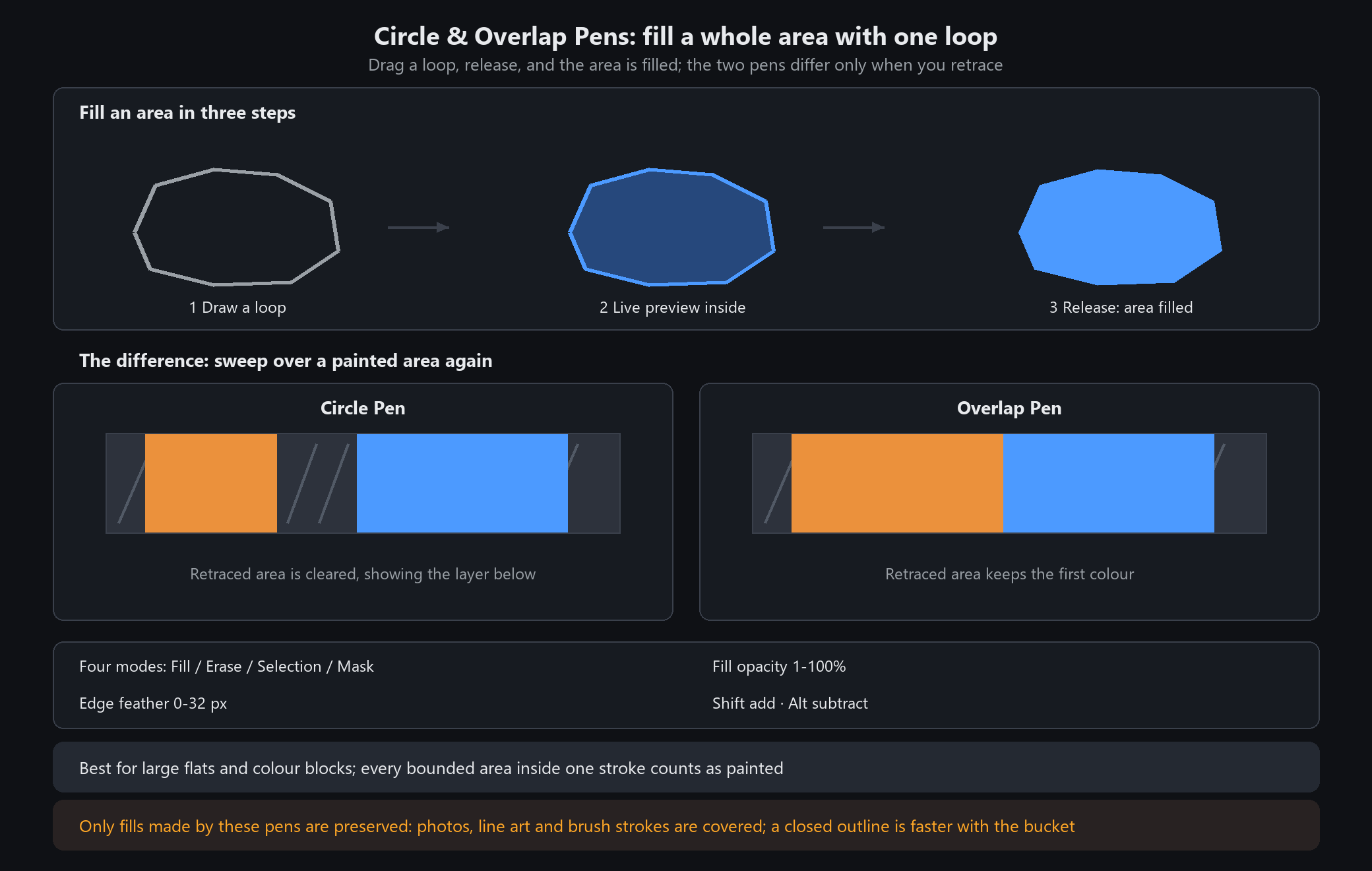
3. Drag a loop around the area on the canvas and release. You can wind back and forth inside the loop; every bounded area it encloses counts as painted.
The difference
Circle Pen: sweeping over an already painted area cancels the colour there and reveals the layer below; untouched areas are filled as usual. Re-trace a mistake to remove it. If the whole stroke lands on old colour, the status bar reports that only cancellation happened.
Overlap Pen: sweeping over an already painted area keeps the first colour and does not cancel it; only new areas get the current foreground colour. Scribble a figure eight or cross your own stroke and the crossings stay solid, with no white holes.
Use Overlap Pen for one-pass flat fills without worrying about overlap. Use Circle Pen when you want to revise as you go, separate two colour blocks or cut holes.
Both pens yield only to fills made by these two pens. Photos, line art and ordinary brush strokes are not preserved and will still be covered.
What the properties panel controls
Four modes: Fill (an editable fill object), Erase (removes content on the current layer), Make Selection, and Layer Mask.
Fill opacity 1-100% controls colour strength; in Erase mode the same control becomes Erase opacity.
Edge feather 0-32 px softens the outline for gentle transitions.
Hold Shift before pressing to add this loop to the previous circle fill; hold Alt before pressing to subtract this loop as a cut-out. Pressing them halfway through a stroke has no effect.
When to use something else
Closed line art and a single click: the paint bucket is faster. Gradients or texture: the gradient tool or a brush.
A locked layer or an unapplied layer mask blocks the fill; the status bar explains why.
After the Circle Pen cancels a colour, nothing remembers that the spot was painted. Dragging that fill's nodes later can claim the area back. Duplicate the layer first if you need to refine its shape.