Selections
4 topics from the in-app manual.
Five selection tools, which to use
Rectangular / elliptical marquee: regular shapes. Hold Shift for square or circle
Lasso: freehand any shape; releasing closes it
Polygonal lasso: click point by point for straight edges, double-click to close
Magnetic lasso: snaps along colour boundaries. Best when subject and background contrast clearly
Magic wand: click once to select a whole similar-coloured region; tolerance sets the range
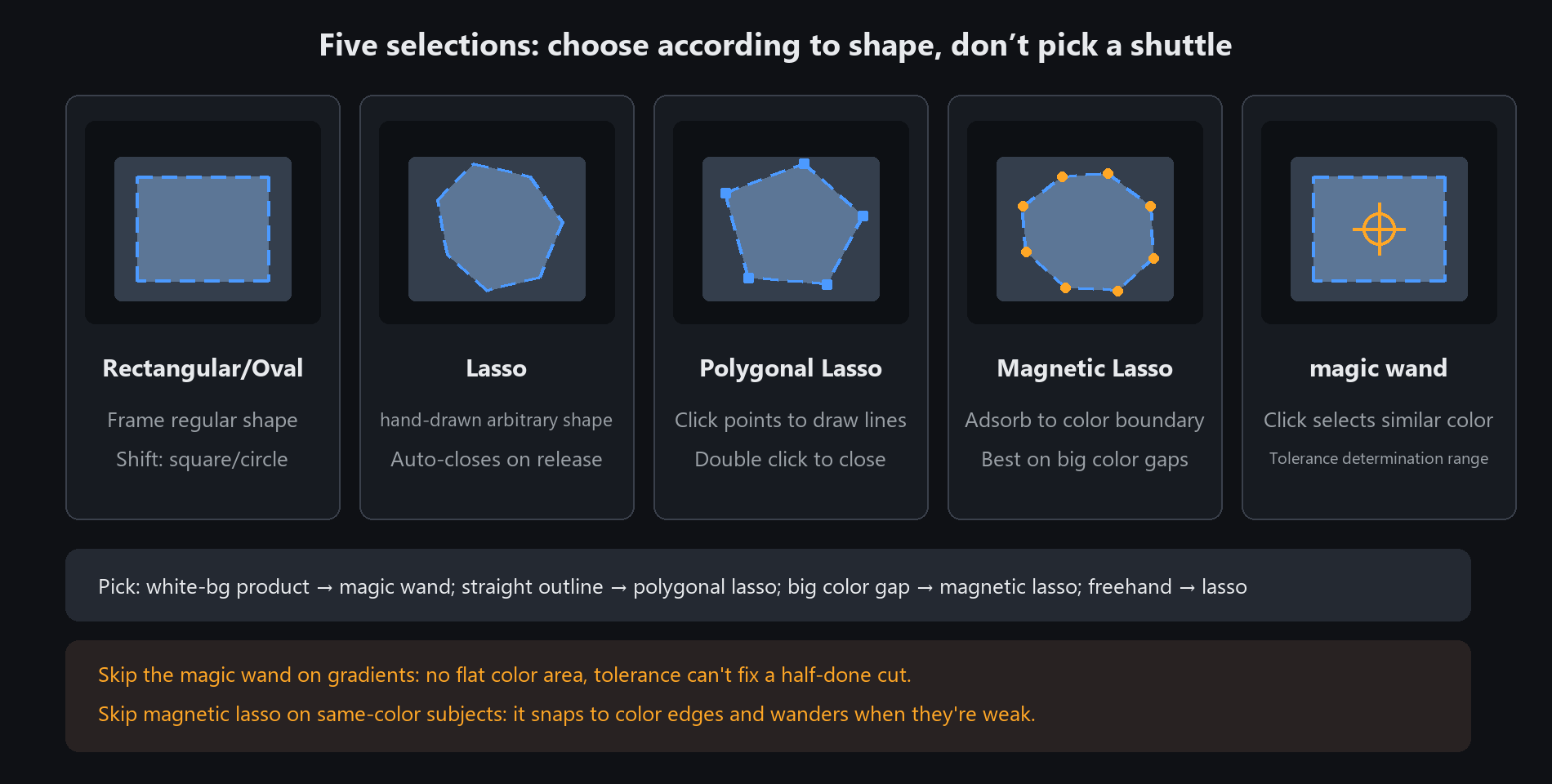
High-contrast subjects (a product on white) → magic wand is fastest.
Complex edges with similar colours (hair, fur) → magnetic lasso is more accurate
Adding, subtracting and feathering
Three modes
The selection toolbar switches between new selection / add to selection / subtract from selection.
Or use the shortcuts: hold Shift while dragging to add, Alt to subtract.
Feather
Feather softens the selection edge so composites do not show a hard seam.
Use 1~2 px for cut-out portraits, 20~50 for glow effects.
Select all and invert
Ctrl+A select all, Ctrl+Shift+I invert. To change the background but not the subject, inverting is fastest.
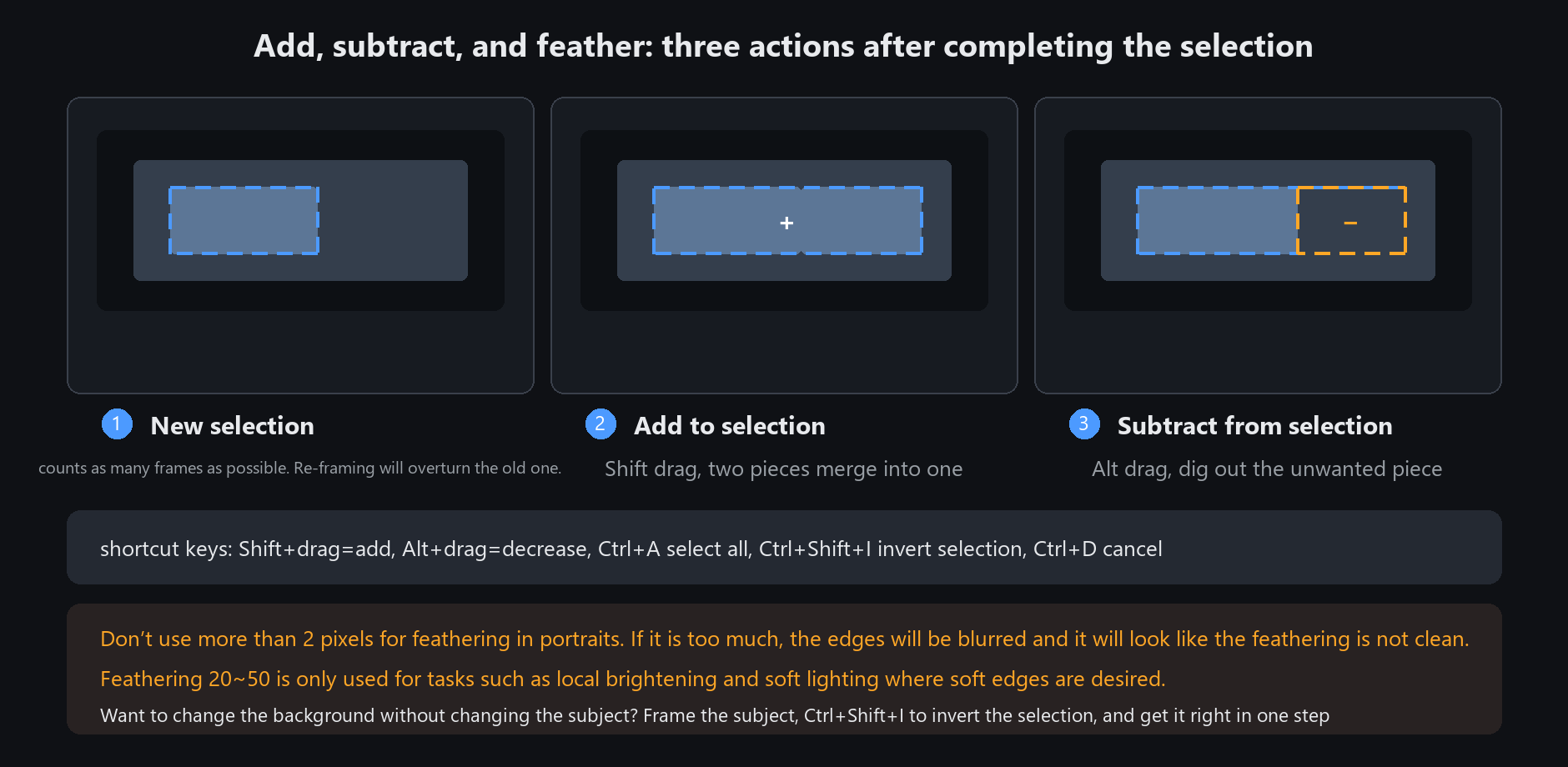
Made a wrong selection? Ctrl+D clears it, or press Esc
Cutting out and swapping the background
Steps
1. Select the subject with the magic wand or magnetic lasso
2. Feather 1~2 px, no more
3. Copy the selection to a new layer
4. Place the new background underneath
5. Check the edges. Any white rim: contract the selection and redo
Common problems
White rim → the selection is slightly larger than the subject. Contract 1~2 px and redo
Soft, hazy edge → too much feather
Veils and stray hairs will not cut cleanly → genuinely hard. Cover it with a soft glow instead
Think about post-processing while shooting: frontal, shoulders level, ears and eyebrows visible, stand against a white wall.
Do those four things and cutting out gets twice as easy
What you can do inside a selection
Once a selection exists, almost every later operation is confined to it:
Brushes paint only inside; anything outside is blocked (excellent for clean colour blocks)
The bucket fills only inside
Filters apply only inside
Copying, deleting and colour adjustments affect only the selection
To brighten one part of a photo: select it → feather 20 → adjust brightness.
That is local adjustment without needing a mask