Rulers
3 topics from the in-app manual.
Rulers: set them up before drawing
What it does
Rulers affect only the strokes you are about to draw — never what is already on the canvas.
For architecture, interiors and comic backgrounds where lines must be tidy, spend ten seconds setting a ruler and every stroke gets easier.
Seven kinds
Straight, ellipse, parallel lines, concentric circles, focus lines, guide lines and smart snapping.
Adjustment
The ruler panel changes position, angle and spacing. Drag the control points on the ruler itself.
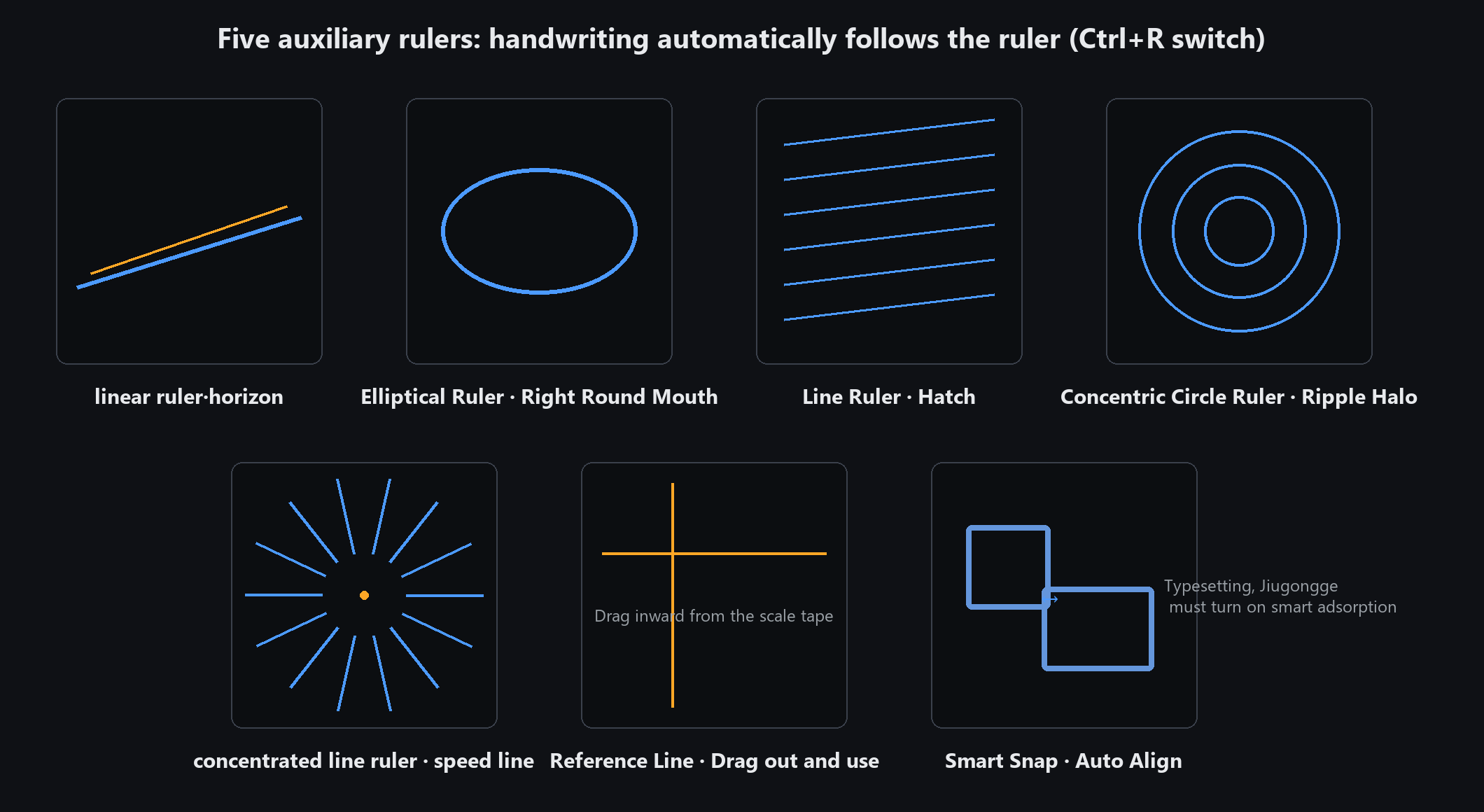
Smart snapping pulls strokes onto nearby key angles and positions — very handy when drawing perspective
Turn it off for loose strokes, clouds and anything meant to look wobbly — an active ruler straightens every stroke
Focus lines: comic speed effect
Choose "focus lines" in the ruler and place a centre point on the canvas
Draw outward from that centre with an inking brush; every stroke automatically aims at the same vanishing point
That is the focus-line effect used in comics for speed, impact and emphasis
Vary the spacing between lines. Perfectly even spacing looks like a gear; uneven spacing has tension
Turning rulers off
Turn it off in the ruler panel, or via menu View → Ruler → Off
Once off, brushes behave normally with no constraints
For one freehand stroke: switch it off, draw, then switch it back on
If your brush seems to "disobey", check whether a ruler is still active