Feature 2 · Asset library
4 topics from the in-app manual.
Where the asset library is and what is in it
How to open it
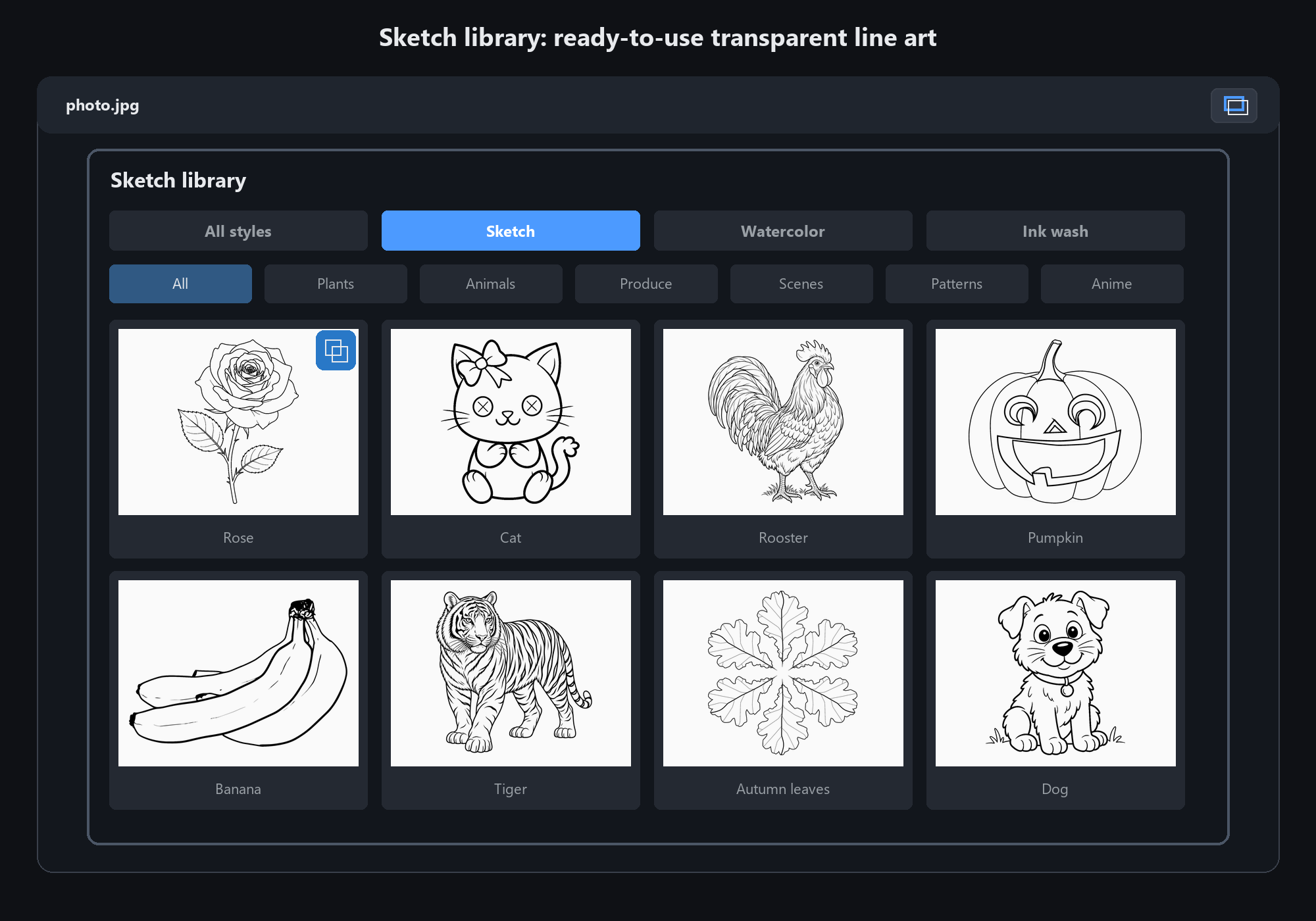
Among the small buttons at the top-right of the canvas, find the "Sketch library" icon and click it.
Or use the menu: File → Sketch library.
What is inside
A large set of black line drawings on transparent background: flowers, animals, fruit, landscapes, anime characters.
They are not finished artwork. They are a base for tracing, colouring and practice.
The drawings are transparent, so you can drop them over a background colour and paint on a layer underneath — the lines always stay on top
Line art plus reference: how dual images work
Some assets carry two images
Apart from the line art, some assets also ship a finished colour reference.
Those cards have a blue overlapping-images icon at the top-right. Click it to switch between line art and the color reference.
Typical workflow
Put the reference next to it and study where this flower is dark and where it is light
Switch back to the line art, add a layer underneath, and paint following those tonal relationships
Hide the reference layer when done — what remains is your own painting
To trace
Drop the line-art layer to about 30% opacity, add a layer above it and ink your own lines, then delete the underlay.
The reference shows you colour relationships, not colours to copy. Copying the colours literally makes the result look muddy
Find assets by style and subject
Two filters
Style: all / sketch / watercolor line / ink line
Subject: changes with style. Sketch offers plants, animals, fruit, scenes, patterns, anime;
watercolor offers landscape, still life, flowers, animals, people; ink offers landscape, birds and flowers, fish and insects, plants, beasts
Fastest way to use it
Pick the style first, then the subject. What is left is a dozen or so thumbnails you can scan at a glance.
If it is not there, it is not there. See "add your own" below
Add your own drawings to the library
Three steps
1. Find the data\sketch folder next to the program
2. Drop your PNG in (transparent background, black lines work best)
3. Restart the app — it shows up under the sketch style
To give it a Chinese name
Put a names.txt in the same folder, one line per file: "filename=Chinese name", saved as UTF-8.
To add a reference
Create a references subfolder and name the file "lineartname_reference.png".
The app pairs it with the line art automatically.
Avoid JPG: no alpha channel, so it lands as an opaque block covering everything below
It is a plain directory scan — no config to edit. Drop a file in and it appears; delete it and it is gone