Feature 12 · Alpha Lock
1 topics from the in-app manual.
Alpha Lock: paint only where you already painted
What it does
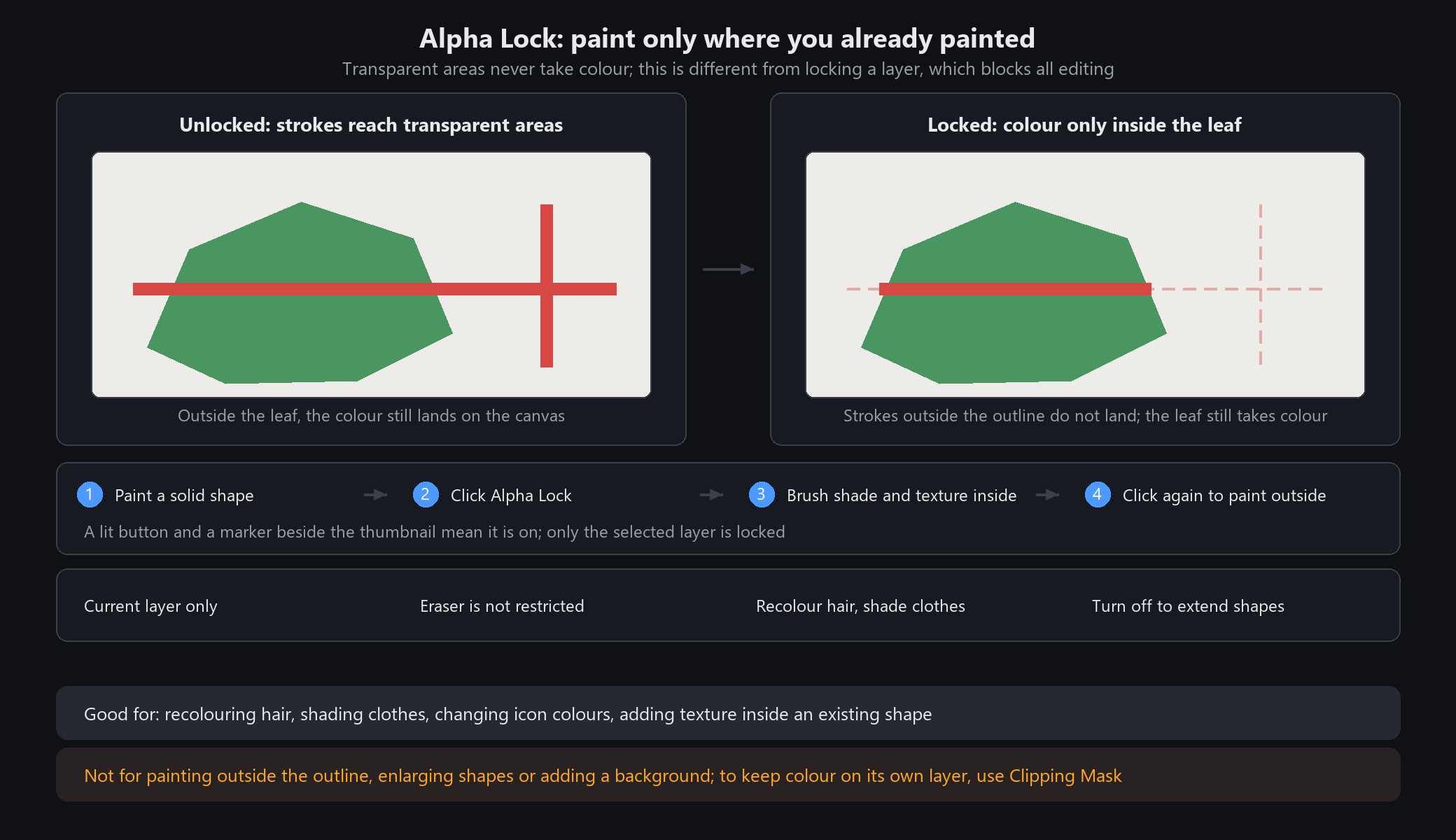
Alpha is simply whether a pixel has content. With Alpha Lock on, the current layer accepts colour, texture and highlights only on pixels that already exist; transparent areas stay empty. This is different from locking a layer, which blocks all editing.
Four steps
1. Paint a solid shape, such as a leaf, on a regular layer. Do not pick the background or a folder.
2. Keep it selected and click Alpha Lock in the layer toolbar. The button lights up and a marker appears beside the layer thumbnail.
3. Brush shade, texture or highlights over the leaf. Strokes crossing its edge will not land in the transparent area.
4. To paint outside the outline, click Alpha Lock again to turn it off.
When not to use it
Good for: recolouring hair, shading clothes, changing an icon's colours, adding texture inside an existing shape.
Not for: painting outside the outline, enlarging the shape or adding a background — turn it off or use a new layer.
If you want colour and outline on separate layers so the palette can change later, use Clipping Mask (Feature 13).
Common mix-ups
Only the current layer is affected. If the brush seems dead, check that the active layer has visible content.
The eraser is not restricted. It can still remove existing content; duplicate the layer to protect the original.
Won't turn off? Select that layer and click the button again; a marker beside the thumbnail means it is still on.