Feature 7 · Background swap
2 topics from the in-app manual.
AI background swap: cut the person out, change the backdrop
Where
Menu Image → Replace portrait background. Segmentation and compositing run
entirely on your machine; the photo never leaves it.
Three kinds of new background
Solid colour: pick any colour; four ID-photo presets below — blue, white, red, grey
Image: choose one of your own photos as the new backdrop
Transparent: remove the background and export a PNG to layer onto anything
Keep range (dropdown)
Main subject (recommended): the most important person or object stays, the rest is replaced
All foreground: every detected foreground stays
Person inside current selection: only what you selected (needs a selection first)
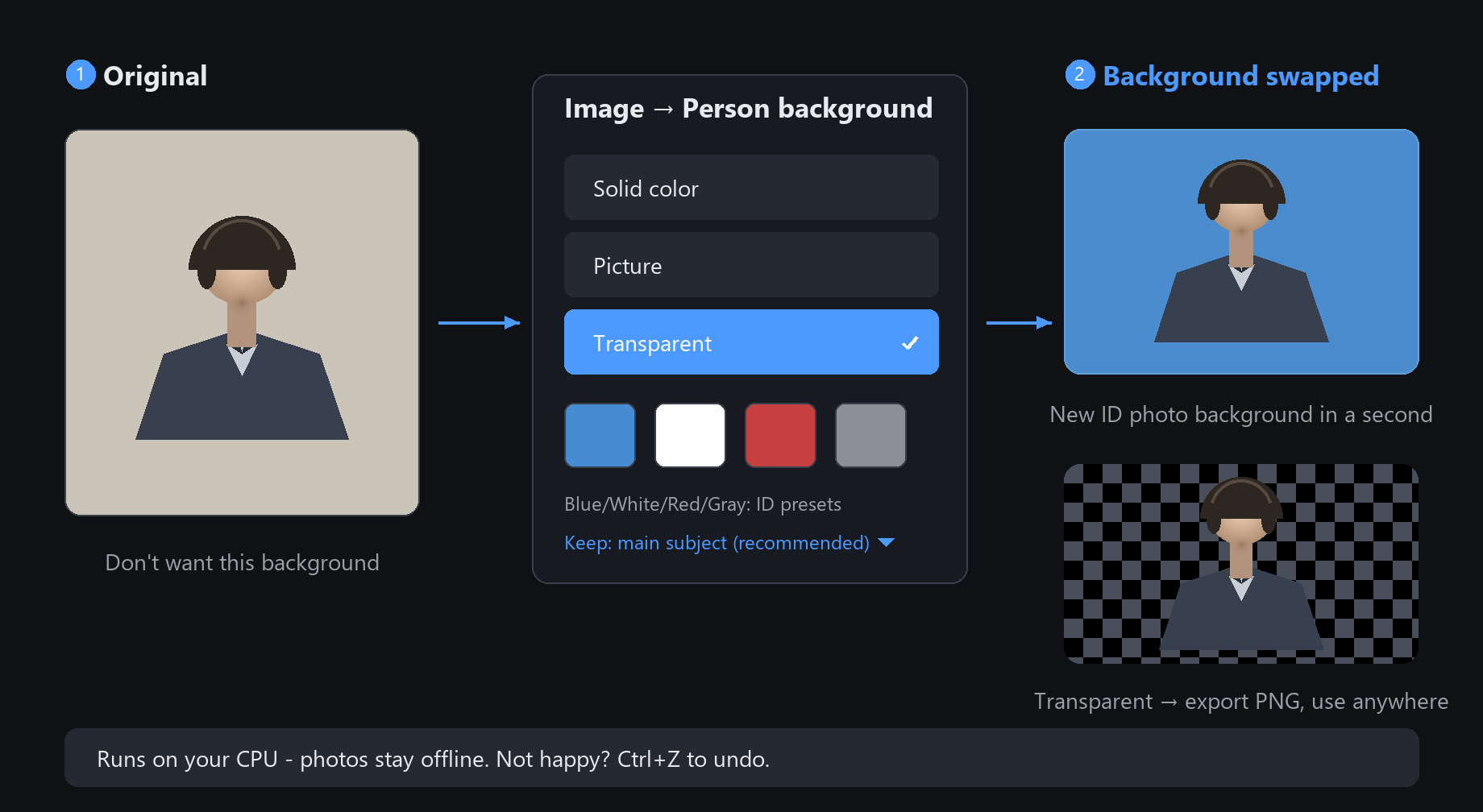
The classic use is ID-photo backgrounds: blue to white in a second.
If a fringe of the old background stays on hair edges, two A/B brush strokes along the hair clean it up
Background textures: 55 canvas presets
Where
Among the small buttons at the top-right of the canvas, right next to the sketch
library, is "Background". Click it for a wall of thumbnails.
What is inside
5 basics: transparent, white, black, foreground, background colour — transparent for asset work
Calligraphy grids: brush grid, rice cross, field grid
Papers: xuan, kraft, watercolour, sketch, parchment, gold-flecked xuan and more
Fabric and hard surfaces: linen, denim, silk, leather, concrete, red brick, brushed metal
Patterns: polka dots, checkerboard, music staves, blueprint, picnic plaid
Natural textures: starry sky, clouds, sand, moss, watercolour clouds
How to use it
Click to switch instantly. Swap back and forth at any time; what you have painted is untouched.
Starting from "transparent" and previewing on "xuan paper" is a common order for ink-style work.
Textures are just the canvas backdrop, not a layer: switch back to "transparent" before exporting a PNG if you need real transparency.
keep a transparent-background project file for serious work