Feature 10 · Hold to Shape
1 topics from the in-app manual.
Hold to Shape: refine a stroke by pausing
Three steps
1. Pick a regular paint brush, pen, pixel brush, vector brush or vector highlighter. Sketch a line, circle, rectangle, triangle, trapezoid or an arc.
2. At the endpoint keep the tip down and still.
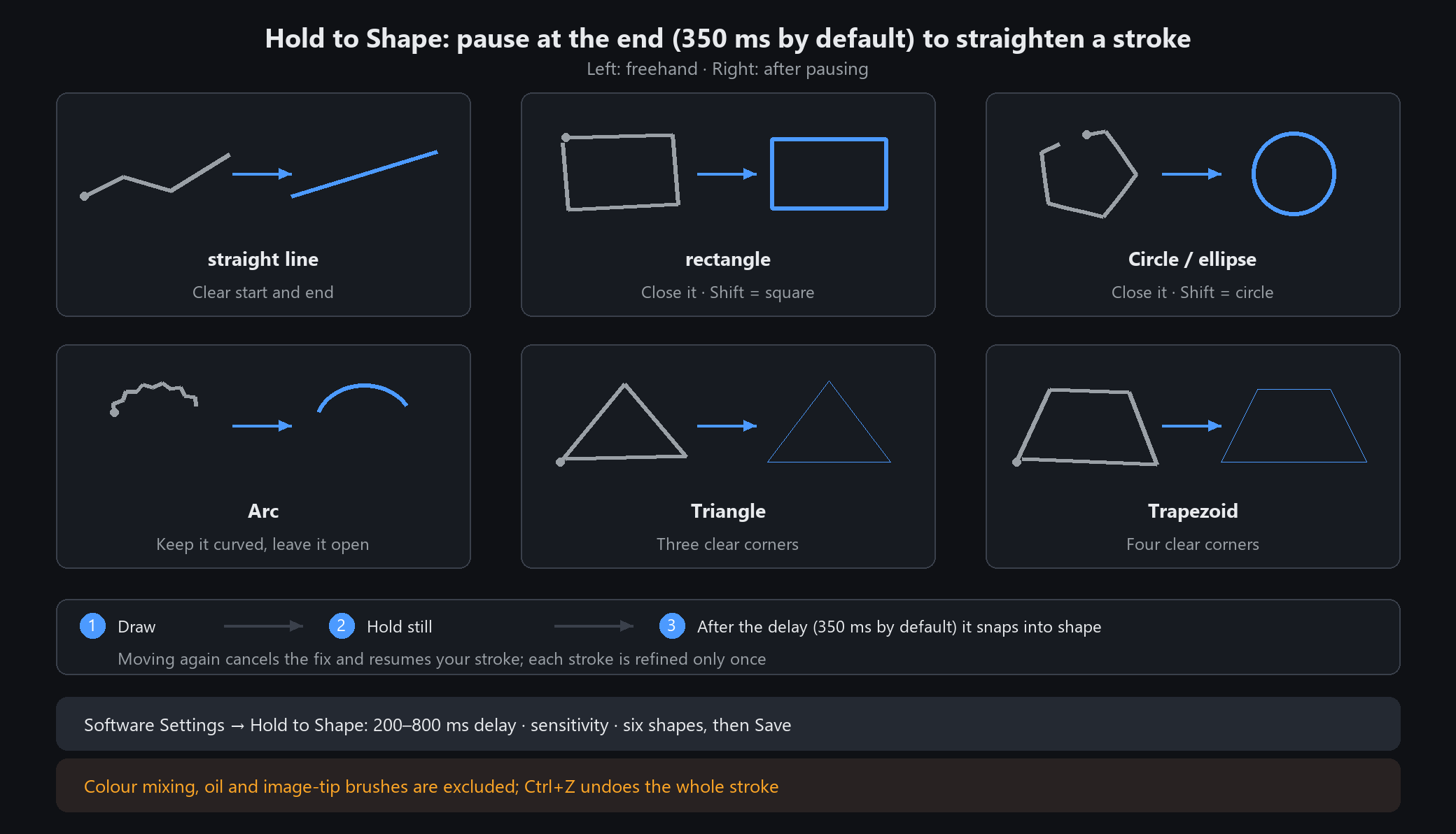
3. After the delay (350 ms by default) the stroke snaps into a clean shape. Moving again before lifting means "undo": the original stroke comes back and you keep drawing.
What the shape must look like
Line: clear start and end points.
Circle, rectangle, triangle, trapezoid: close them as much as you can. Corner counting tells shapes apart, so a triangle is never forced into a rectangle.
Arc: keep it curved and open; a closed arc is read as a circle or a quadrilateral.
Hold Shift while pausing to snap a circle into a perfect circle or a rectangle into a square.
Too eager, or not eager enough
Fires when you did not want it: open Software Settings → Hold to Shape, raise the delay (200-800 ms) or lower the sensitivity; each of the six shapes can be turned off.
Does not fire when you want it: pause longer or raise the sensitivity; very rough shapes may not be recognized.
A stroke is refined at most once. After lifting, Ctrl+Z undoes the whole stroke, not just the refinement.
Colour mixing, oil and special image-tip brushes keep their original strokes.