Feature 14 · Symmetry Painting
1 topics from the in-app manual.
Symmetry Painting: draw one side, get the others
The idea
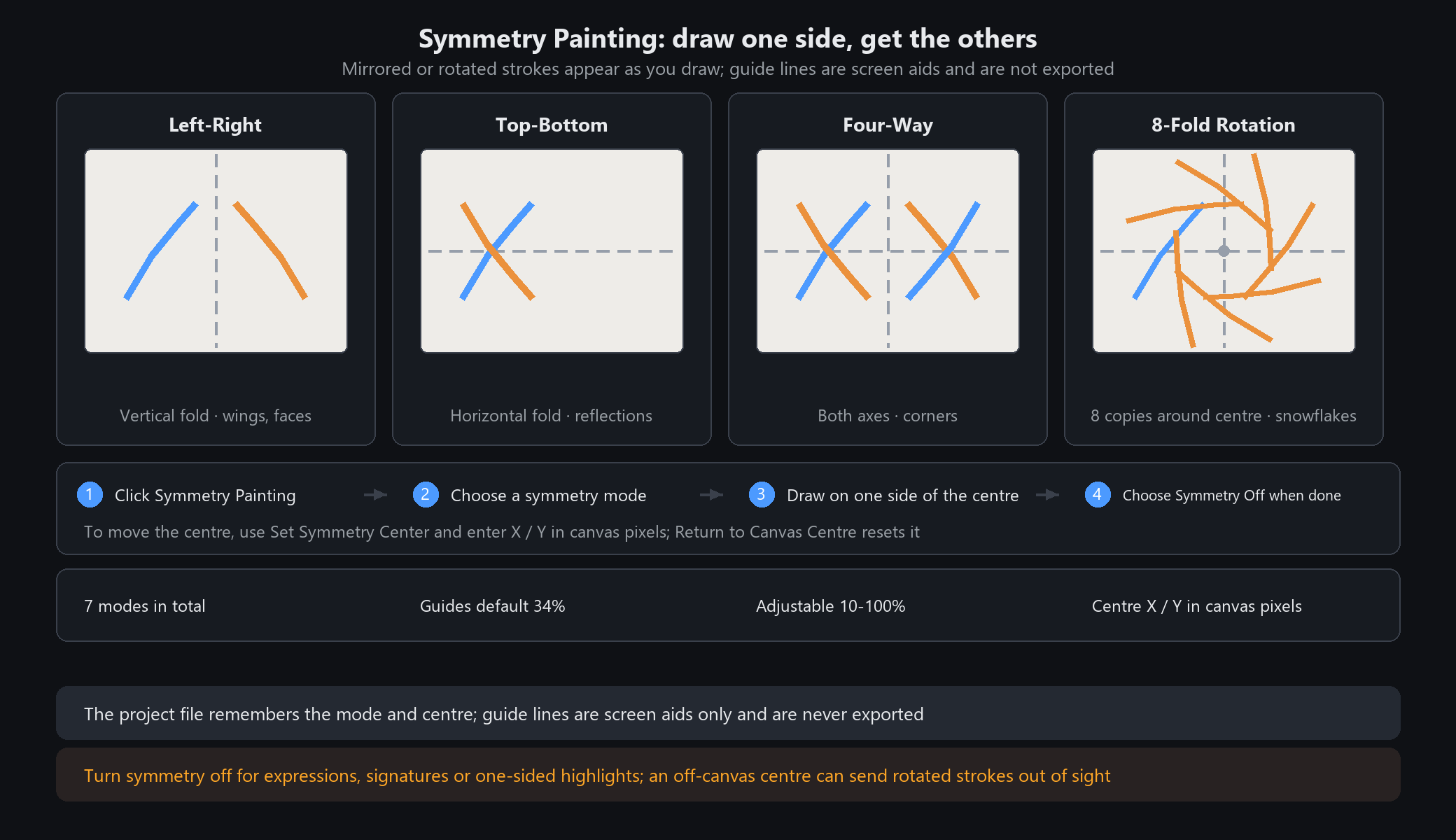
Matching mirrored or rotated strokes appear as you draw, so butterflies, face patterns and badges need no measuring. The centre starts at the canvas centre; guide lines are only screen aids and never appear in the exported image.
Five steps
1. Click Symmetry Painting in the top toolbar, or use Image → Symmetry Painting.
2. Choose Left-Right Mirror and draw half a butterfly left of the centre line; the other half appears at once.
3. Choose Four-Way Symmetry to mirror both axes; try Four-, Six- or Eight-Fold Rotation for radial patterns.
4. To move the centre, choose Set Symmetry Center and enter X (horizontal) and Y (vertical) in canvas pixels; Return to Canvas Centre resets it.
5. Toggle Show Guides and set guide opacity — default 34%, adjustable from 10% to 100%. Choose Symmetry Off when done; later strokes are drawn once.
Choosing a mode
Off: ordinary drawing.
Left-Right Mirror: folds across a vertical line; butterfly wings, both sides of a face.
Top-Bottom Mirror: folds across a horizontal line; reflections in water.
Four-Way Symmetry: mirrors across both lines; four-corner decoration.
Four-, Six-, Eight-Fold Rotation: repeats 4 / 6 / 8 copies around the centre; flowers, snowflakes, badges.
When not to use it / Questions
Asymmetric details (expressions, signatures, one-sided highlights): turn symmetry off first, or one stroke produces several copies.
Does turning it off delete earlier copies? No. It affects only later strokes.
Centre moved outside the canvas? Rotated strokes may land off-screen; use Return to Canvas Centre.
The project file remembers the mode and centre. Guide lines are not exported.