WENCANG IMAGE / FEATURES
Find the right tool for the job
Explore drawing, portrait, batch image and frame-by-frame animation workflows. Each page starts with the task you want to finish.
Download for WindowsBRUSHES
Drawing & coloring
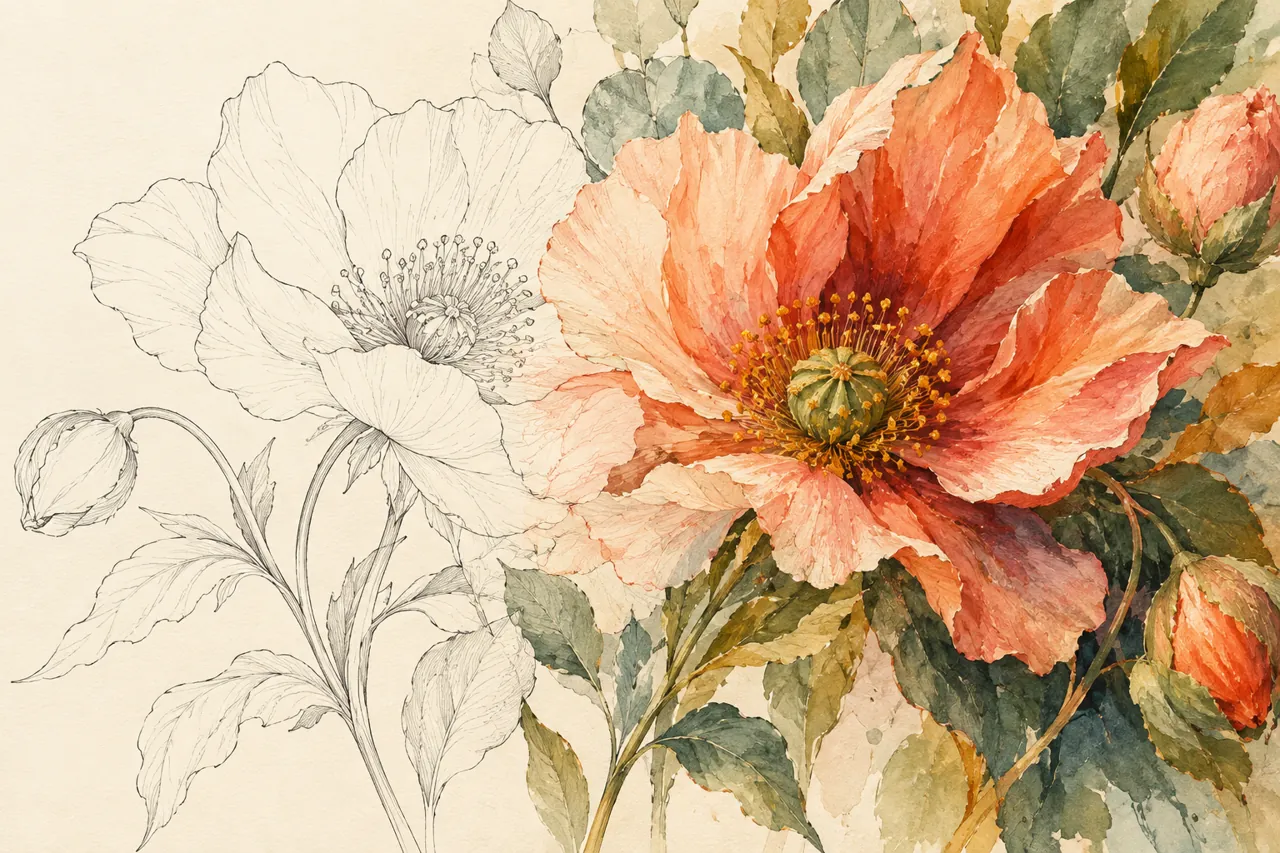
Digital painting brushes for Windows
Sketch, ink, shade and paint in one layered Windows workspace. Choose a brush for the mark you want to make, then keep every experiment editable.
Explore workflows ↗Area Paint and Stack Paint brushes
Need to fill an irregular shape without tracing a perfectly closed outline? Draw the region and release to color it. Choose how overlapping strokes should behave.
Explore workflows ↗Color line art on Windows
Turn a scanned sketch or clean line drawing into a colored illustration. Prepare the lines, choose a fill method and refine the edges on editable layers.
Explore workflows ↗Fill line art without white rims or leaks
A thin white rim along the ink, or colour escaping through a broken contour, are the two most common fill problems. Both are handled in the paint bucket settings before you fill.
Explore workflows ↗Paint shading without leaving the outline
Alpha Lock confines colour, texture and highlights to pixels that already have content on the current layer. Transparent areas stay untouched, so a leaf or a hair shape keeps its silhouette while you work.
Explore workflows ↗Colour freely inside the shape on the layer below
With a clipping mask the upper layer shows only where the lower layer has content. The stencil and the colour stay on separate layers, so you can repaint one without touching the other.
Explore workflows ↗Draw one side and get the other side automatically
Mirrored or rotated strokes appear as you draw, so butterflies, face patterns and badges need no measuring. The centre starts at the canvas centre and the guide line is screen-only.
Explore workflows ↗Fade the reference layer so you can trace over it
Onion Skin changes only what you see on screen: the selected layer stays at 100% and the others fade to a percentage you set. Saves and exports always use the original layer content.
PORTRAIT
Portrait & photo
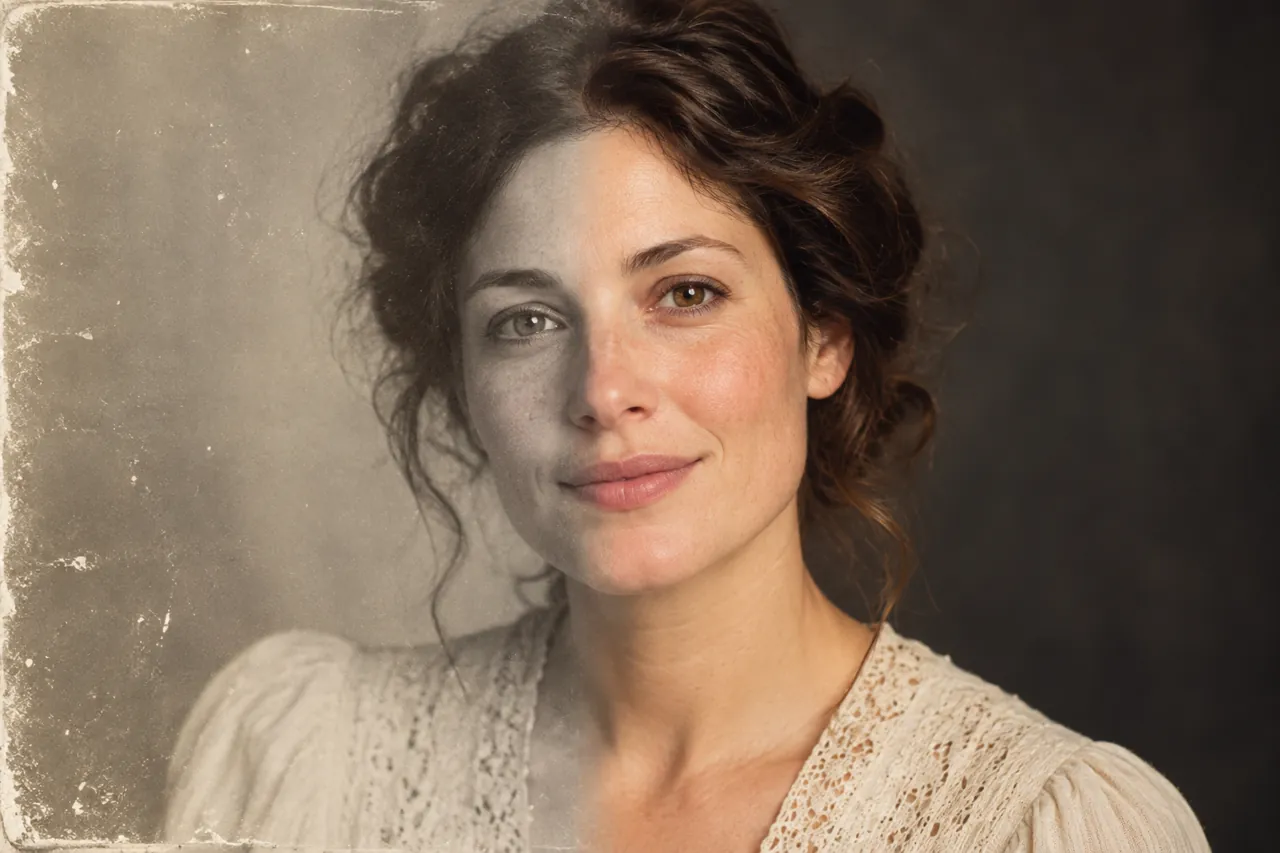
Portrait retouching software for Windows
Retouch skin, adjust facial details and shape the light without losing the character of the person. Work through the portrait panel at your own pace.
Explore workflows ↗Fix a dark face with portrait relighting
A good portrait can still leave the face in shadow. Add light in a chosen direction, adjust its strength and color, and keep the result natural.
Explore workflows ↗Change a portrait or ID photo background
Need a clean portrait background for an ID photo or profile image? Separate the person, inspect the edges and choose a suitable solid color.
Explore workflows ↗Restore scratched and damaged old photos
Old prints collect dust, scratches, tears and stains. Work through them in a fixed order — dust detection first, AI repair for large damage, AB brushes for the fine spots — and keep the character of the original.
Explore workflows ↗Colorize black and white old photos
Automatic colourisation with manual control: adjust colour strength, remove the yellow cast of old prints, and pin known colours — a green uniform, a red scarf — with a main colour.
BATCH
Batch image processing
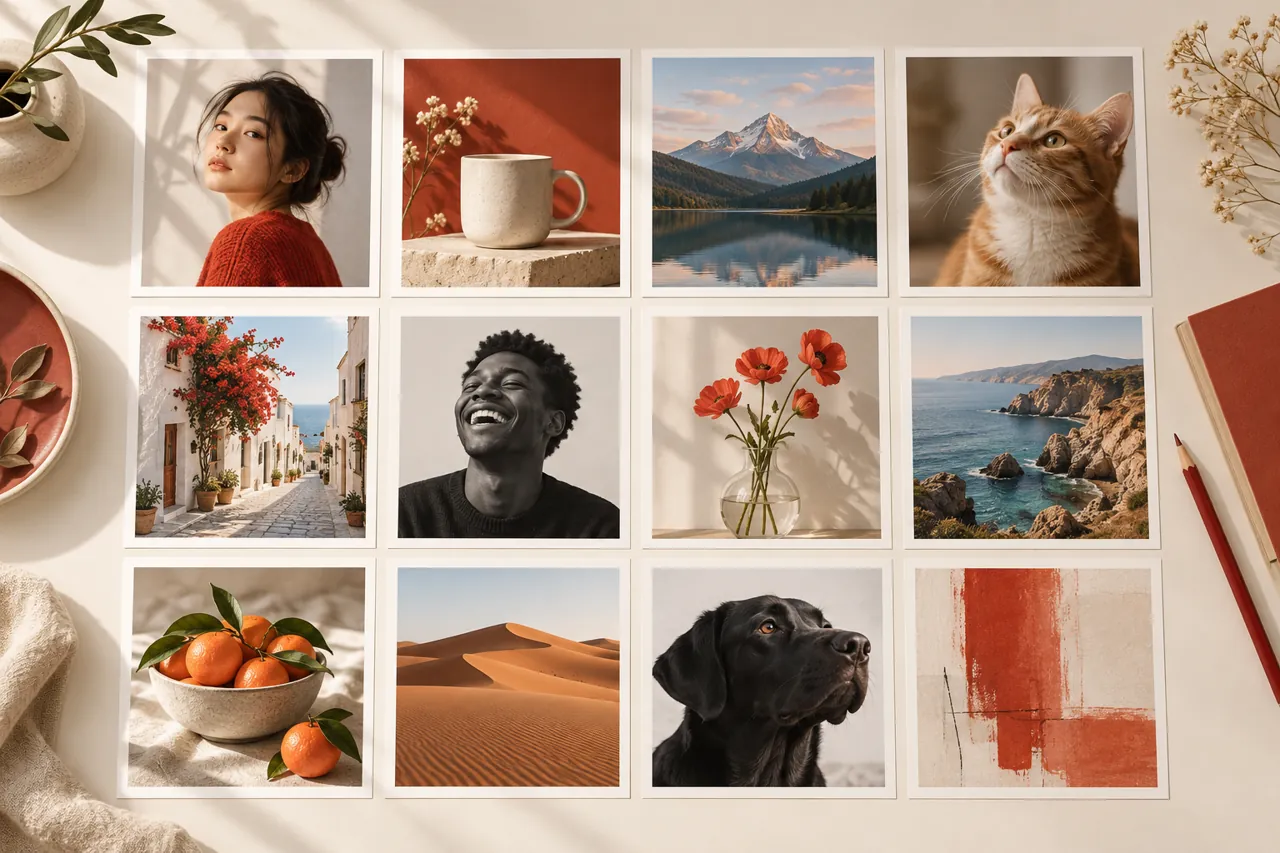
Batch image processing for Windows
Resize, compress, convert and watermark groups of images without repeating the same steps for every file. Review input and output settings before running a job.
Explore workflows ↗Batch resize photos for web and stores
Make many photos fit a consistent size for product listings, articles or a portfolio. Choose how images fit the target canvas before exporting.
Explore workflows ↗Batch compress images to a target file size
Preparing uploads with a size limit? Compress a group of images and review the result when a target cannot be reached without excessive quality loss.
Explore workflows ↗Add watermarks to images in bulk
Put the same mark on a collection of product or portfolio images. Set its position and opacity once, then apply it consistently to the batch.
Explore workflows ↗Batch prepare product images for online stores
Give mixed product photos one consistent canvas, centered padding, output format and file size. Prepare a folder for store listings without editing each image by hand.
Explore workflows ↗Batch convert image formats
Need the same images in another format for a website or client? Convert a folder while checking transparency and background behavior for the chosen output.
Explore workflows ↗Rename a whole folder of images with a preview first
Batch rename changes the names of the files you select. Because it edits the original filenames rather than writing copies, the confirmation screen and numbering rule deserve a careful look before you run it.
Explore workflows ↗Apply one consistent look to a whole folder of photos
The Batch menu groups Watermark / auto beautify together: one mark or one look applied to a set of photos. For a single image, Filter → Auto beautify corrects levels, contrast, white balance, vibrance and clarity.
ANIMATION
Animation & timeline
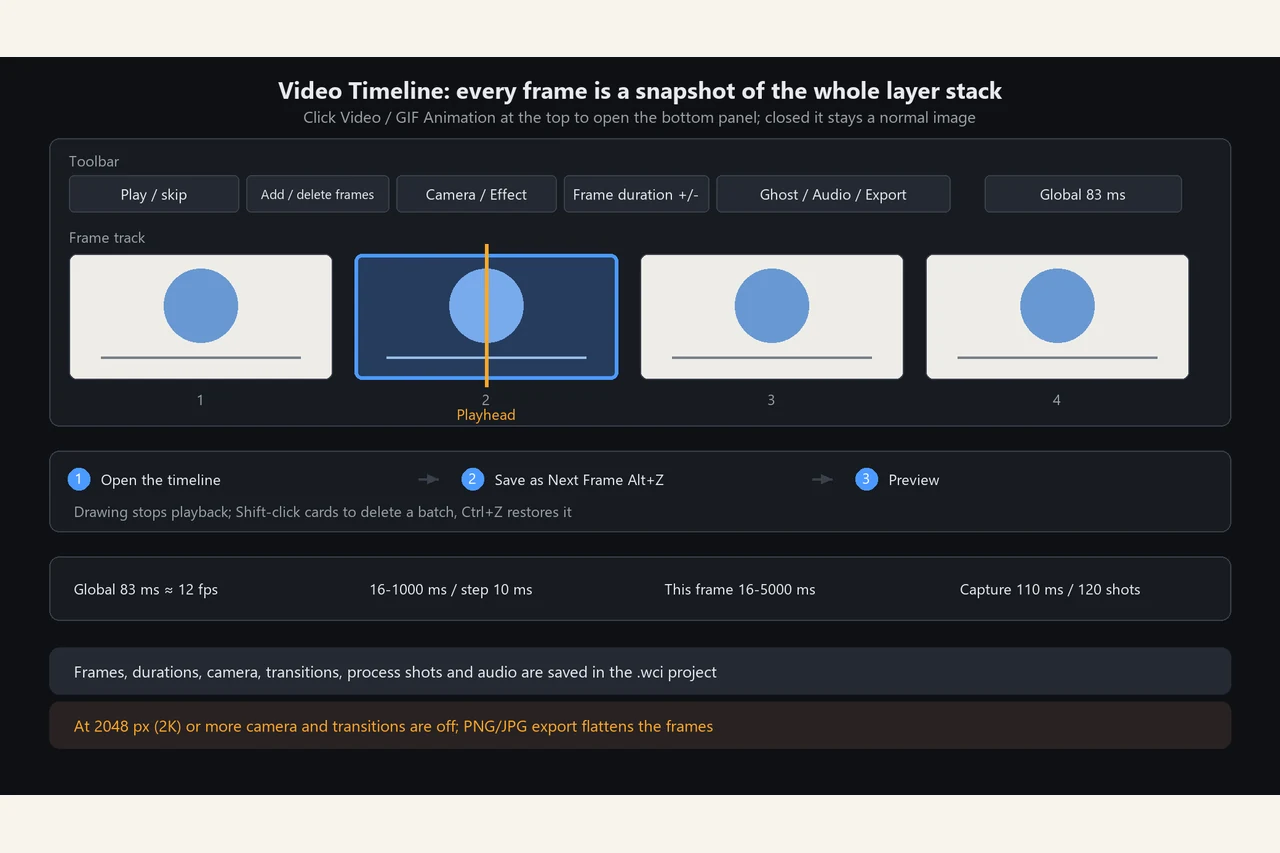
Frame-by-frame animation on a Windows timeline
Draw one frame, freeze the whole layer stack, and play the sequence back. Camera moves, transitions and per-frame timing all live on the same timeline.
Explore workflows ↗Align a soundtrack to frame animation
Import a waveform under the frame track. Both tracks share one playhead, and the green and red markers define exactly which part plays.
Explore workflows ↗Export animation as MP4, GIF or a PNG sequence
Choose GIF for a looping clip, PNG sequence for editing elsewhere, or MP4 when the soundtrack needs to travel with the picture. Camera moves, transitions and recorded strokes are expanded into real frames.